
Adding data from the layers library and using the in-map view
The layers library is where you find and favorite the data you want available on the map. You can organize and manage those layers directly from your layers list in the side menu or from the layers library itself. This guide covers how to favorite layers, use the in-map view to surface relevant data for a specific area, preview layers on the fly, and organize everything with collections.
How to add layers from the library
| 1. Select the Layers button in the top right corner of the map | 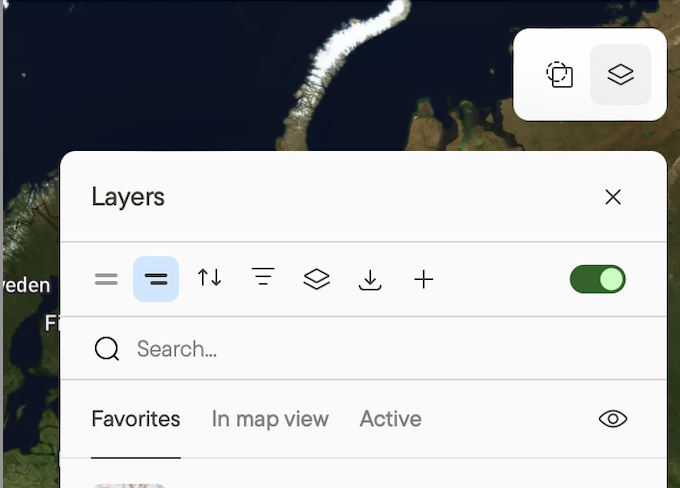 |
| 2. Open the Layers library at the top of the panel | 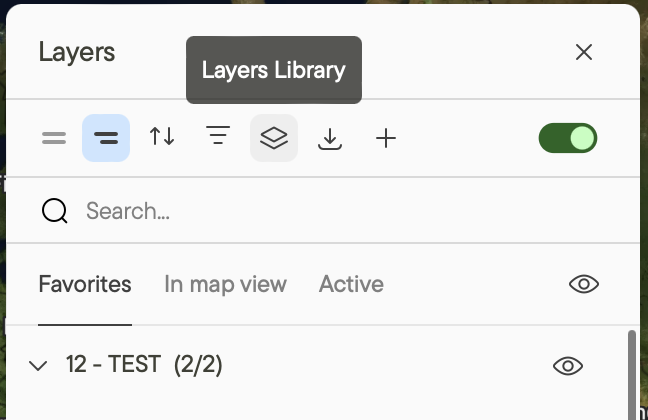 |
| 3. Browse the available layers, sorted into Glint Solar layers and any layers you've imported | 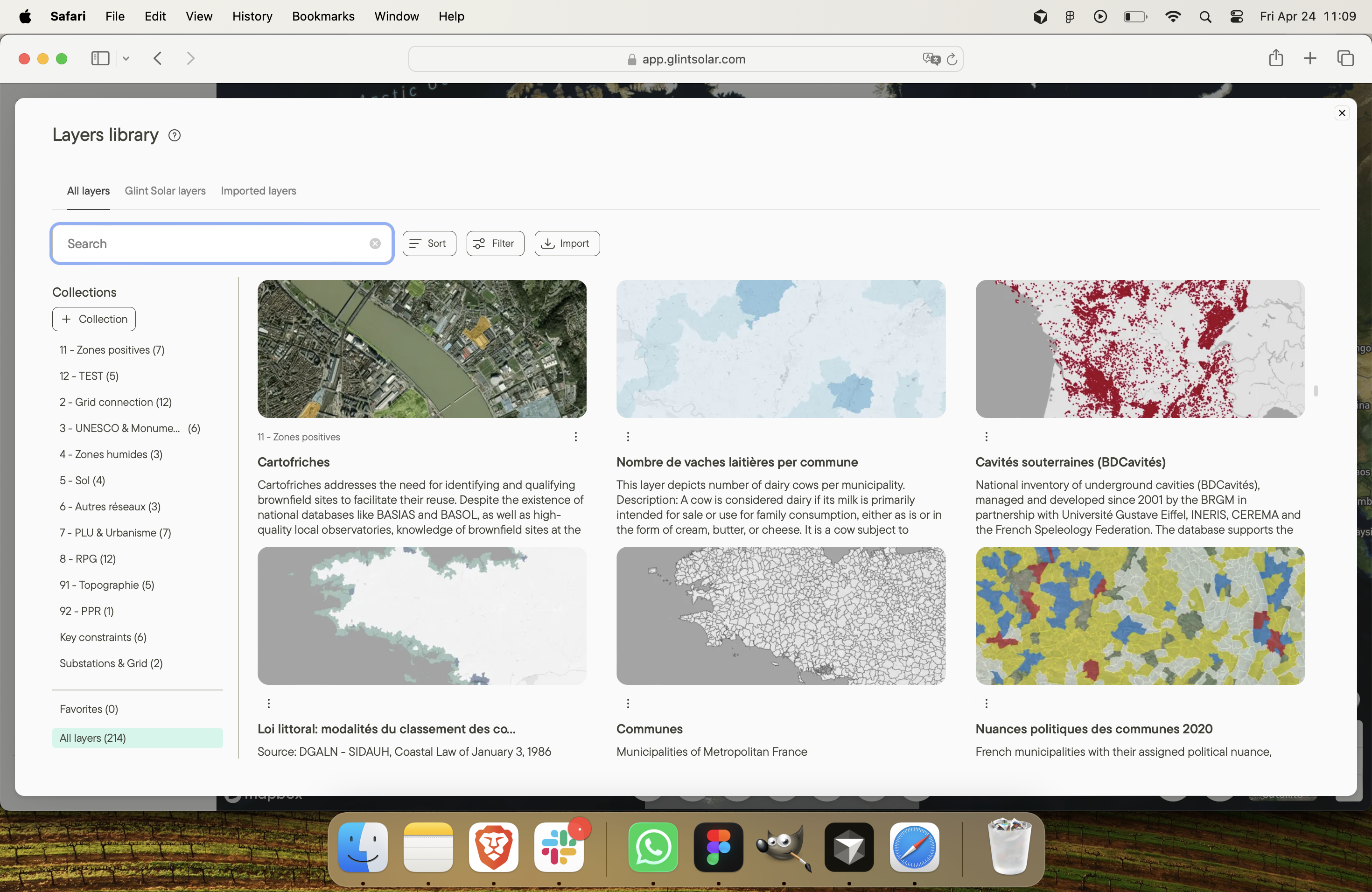 |
4. Click a layer to add it to your favorites so it appears in your layers list
5. Click again to remove it from your favorites
The first time you log in, your layers list will be empty until you favorite a few layers.
Navigating the layers library
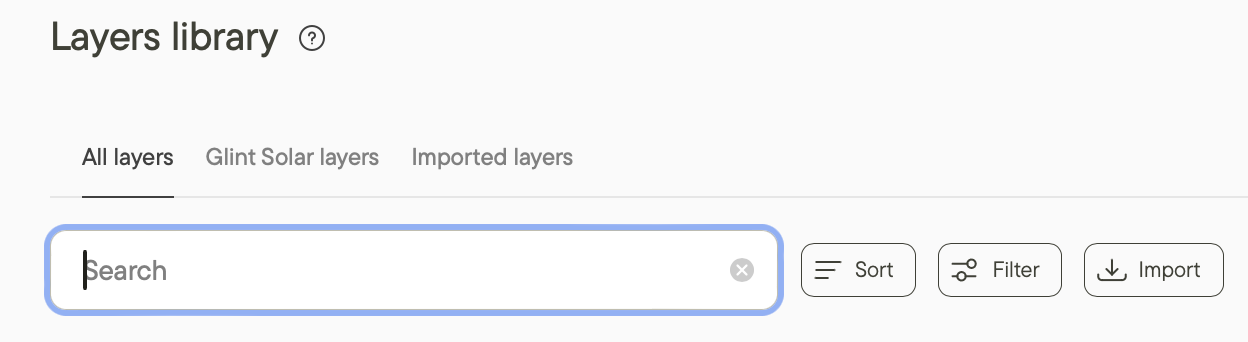
You can browse the library by category (All layers, Glint Solar layers, Imported layers, My favorite layers), search by keyword, sort alphabetically or by date, and filter by data provider.
How to use the in-map view
The in-map view surfaces only the layers with geometry that overlaps a specific area of the map, so you can quickly see what data is relevant to the site you're evaluating.
1. Zoom into the area you want to check
2. Click the in-map view button in the layers menu
3. A rectangle appears on the map marking the check area
4. The list updates to show every layer with geometry overlapping that rectangle
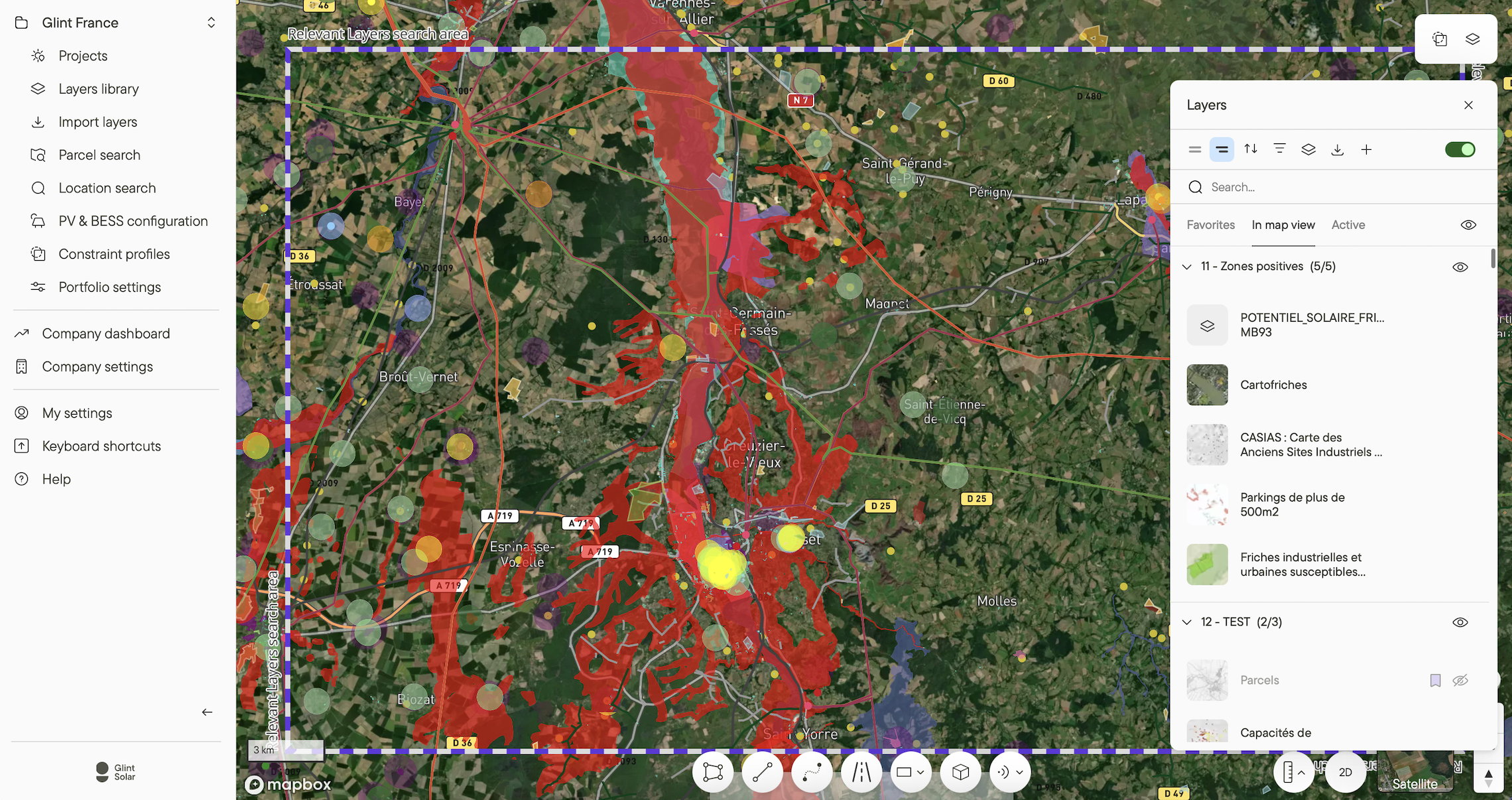
Layers already in your favorites show a purple label. Layers without the label aren't in your favorites yet but are still checked, so you don't miss anything relevant to the site. Move the rectangle to a new location and click load to reload the relevant layers.
How to preview layers with Shift + hover
Instead of turning layers on and off one by one, hold Shift and hover over a layer to turn it on temporarily. Drag your cursor down the list with Shift held to scan through every overlapping layer in sequence.
Managing visibility on the map
The eye icon next to each layer toggles it on or off. Use the master toggle at the top of the list to turn all active layers off at once, then back on.
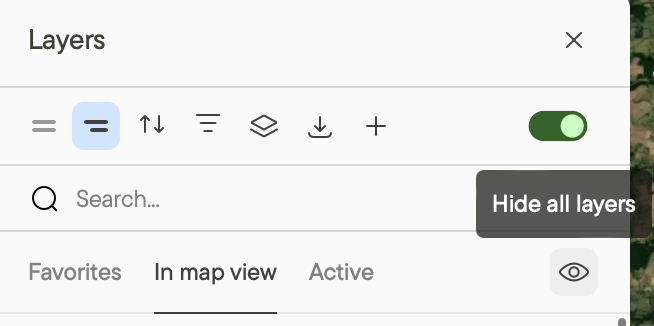
If you pan or zoom to a new area, you can update the relevant layers by clicking load.
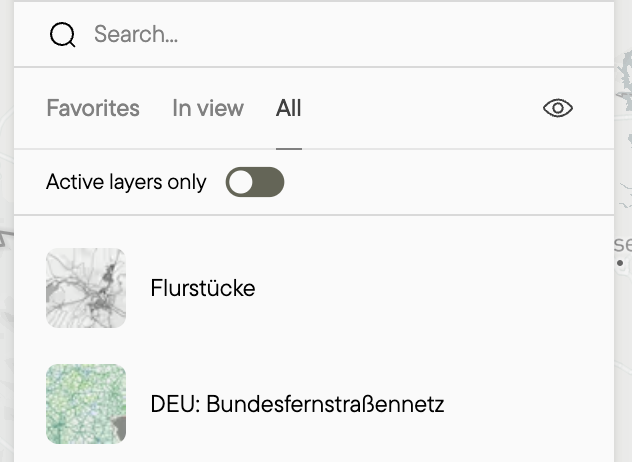
View active/all layers
By clicking the All tab you can view all the layers available in our library as well as the layers you have imported. By toggling active layers you can view only the layers you have turned on to get a quick overview.
How to use layer collections
| 1. In your layers list, click the + icon to create a new collection | 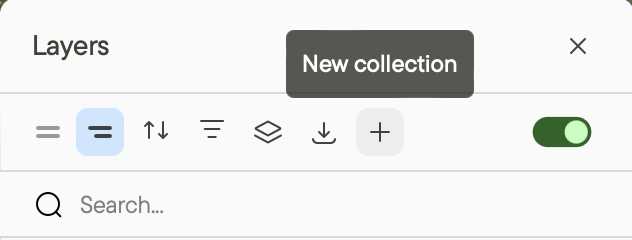 |
| 2. Double-click the collection name to rename it (for example, Infrastructure) |  |
| 3. Right-click any layer and choose Add to collection, then pick the collection and save | 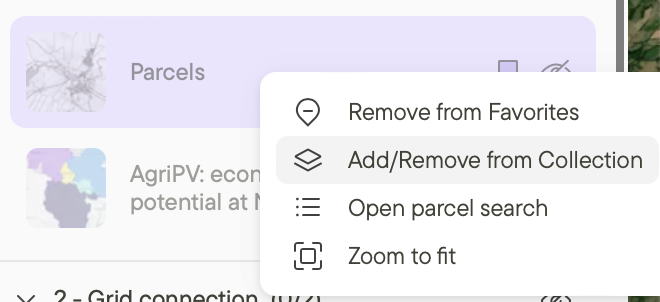 |
Collections appear in your layers list on the map. Toggle the whole collection with the eye icon, or control individual layers inside it. A layer can sit in more than one collection.
You can also organize multiple layers at once. Hold Cmd (or Ctrl) and click to select several layers, then right click on any layer and choose Add to favorites or Add to collection. This is the quickest way to set up a new collection or tidy up your favorites.
Layers: Users and Portfolios
- Layers and collections are portfolio-specific. Changes made in one portfolio won't affect others.
- Collections are accessible to all users with portfolio access.
- Each user can customize their own layers list.
Additional resources
Learn more about importing data as a layer in <How to import to Glint Solar> and Importing data as a layer.
Learn about using layers and filters to find the best sites in Filtering to find the best sites.