
Using 3D Objects in Glint Solar
This article will guide you through the new 3D modeling feature in Glint Solar, explaining its benefits, how to access it, and how to use it to create compelling visualizations of your solar projects.
Why 3D Models Matter
Realistic 3D models significantly enhance communication with stakeholders by providing immersive project representations. They help:
- Improve Stakeholder Engagement: Show landowners and other stakeholders precisely how the project will look.
- Streamline Approvals: Provide clear visualizations to local authorities for permit applications.
- Enhance Community Relations: Proactively address neighbors' concerns with transparent visualizations.
- Boost Project Aesthetics: Create visually appealing representations showcasing project integration.
Where to Find the 3D Modeling Tool
Access the 3D modeling workspace within your Glint Solar project in the drawing tool at the bottom of the screen. Look for a "3D" button. Make sure you have toggled on 3D mode at the bottom right side of the screen to see the models in 3D.
How to Use the 3D Modeling Tools
Follow these three steps to create your 3D models:
- Click the 3D button to access the 3D Object Library: Choose from a variety of pre-designed objects, including fences, electrical equipment, trees, hedges, and more.
- Add and Manipulate Objects: Click on the desired object to add to your scene. Drag, rotate, scale, duplicate, or delete objects as needed.
- Navigate the 3D Scene: Use navigation tools to explore your model from different perspectives.
Integrating with PVsyst
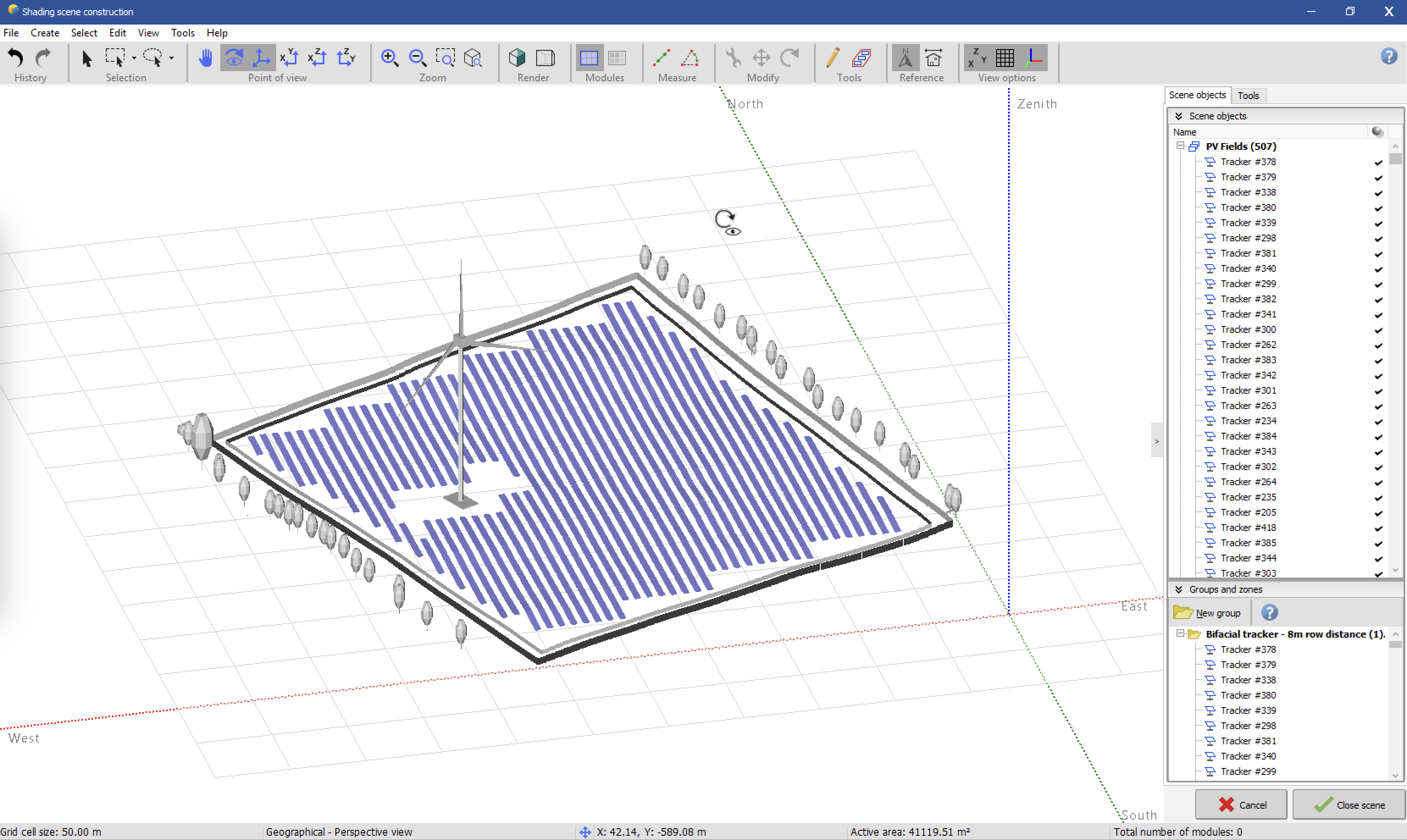
Create an analysis including the desired 3D objects. Then, export your shading scene (.pvc) directly to PV Syst for faster and more accurate near shading simulations. Look for the "Export to PV Syst" option on the analysis report.

Tips for Effective 3D Models
- Start simple: Add essential elements first.
- Maintain scale: Ensure objects are sized correctly.
- Consider viewpoints: Visualize the project from key stakeholder perspectives.
- Iterate: Refine your model for optimal realism.
Additional resources
Read more about 2D and 3D visualizations, Exporting map view with legends and Importing and exporting with Glint Solar.