
Project portfolio overview
Whether you have a small team or a large organization, keeping track of solar projects in development can be challenging. That's why we've created several ways to organize your work in Glint Solar! With labels, stage tracking, and multiple project views, you'll never miss an opportunity.
Organizing your projects with labels, stages and capacity
Projects can be efficiently organized using labels, stages, capacity metrics, and other data points — all visible on the project card or within the project details.
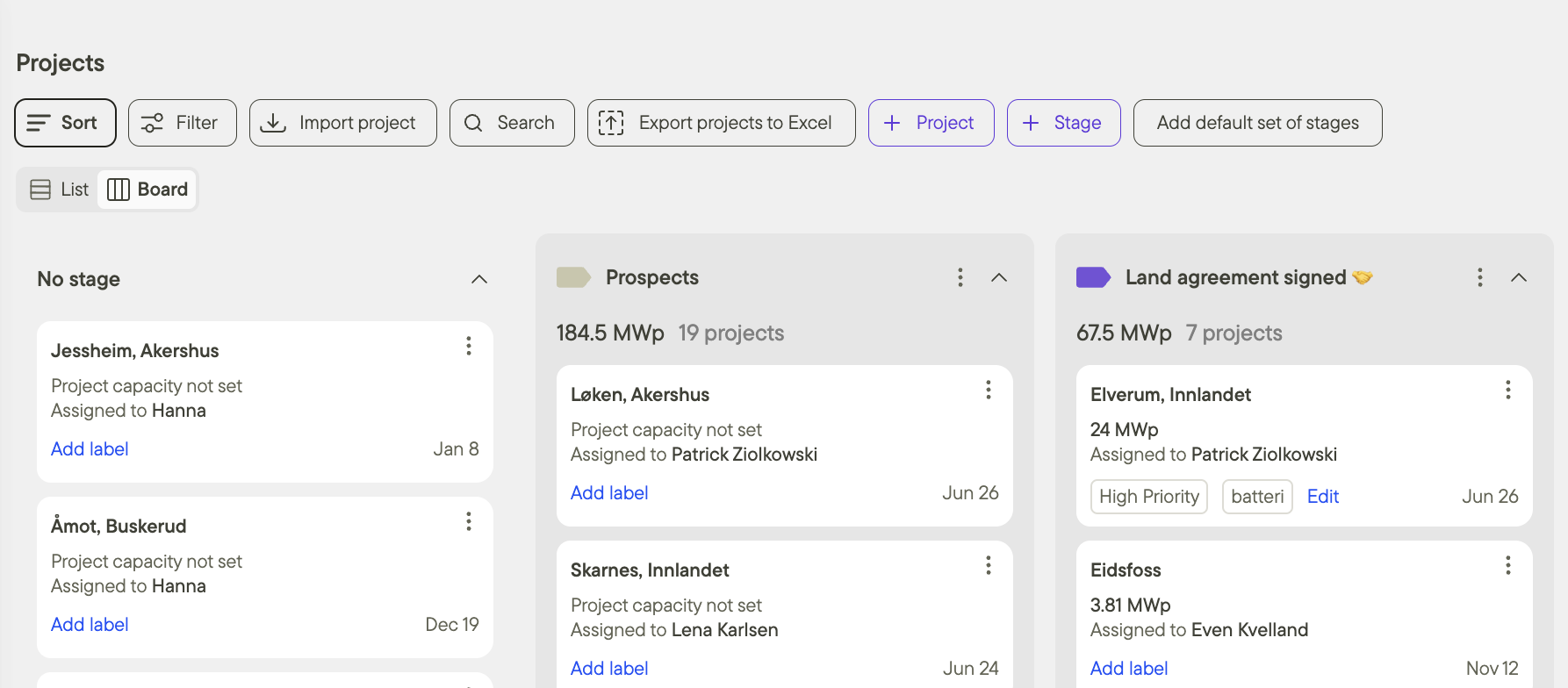
There are several different ways to view your projects:
- List view
- Board view
- Table view. Check out our quick guide here:
Read more about custom properties to keep your project details organized and up to date: Custom Project Properties
Labels
Labels are a powerful way to categorize your projects. You can apply multiple labels to each project, and they're stored for easy reuse within the same category. Use labels to tag regions, technologies, collaborators, customers, project sizes, and more.
Stages
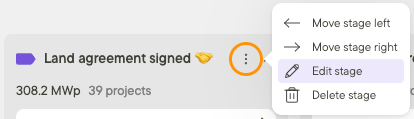
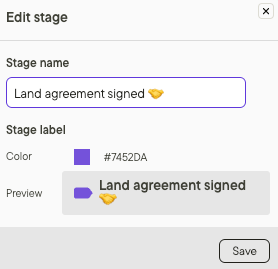
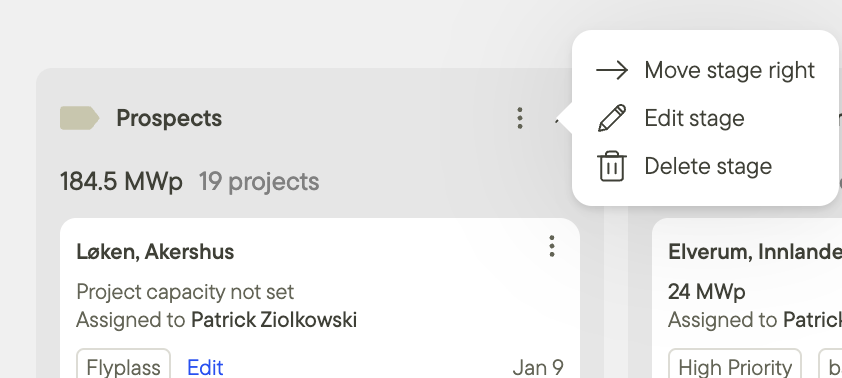
Stages help you track project status across your team, portfolios, and locations. View project status individually or group projects by stage for a broader overview. Customize stages by editing their names, colors, and order. Note that stages containing projects cannot be deleted. Make changes through the Board view by clicking the three dots in the top right corner of any stage. You can also quickly get started with a set of default stages!
Estimated capacity
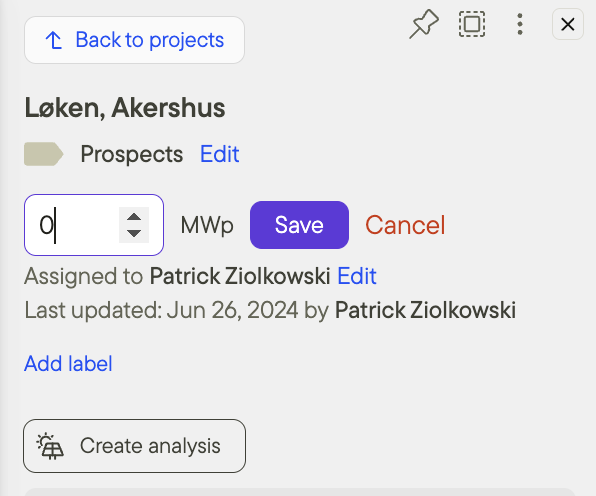
The estimated capacity field lets you add key capacity data to your project. Please note that this will not be calculated by the platform automatically, and you will need to manually input the estimated capacity on the Project for it to be calculated in the stage in Board View.
Assign project owner
Clearly designate team members responsible for each project. Filter by project owner to see who manages projects in different map areas and stages of development.
Project views
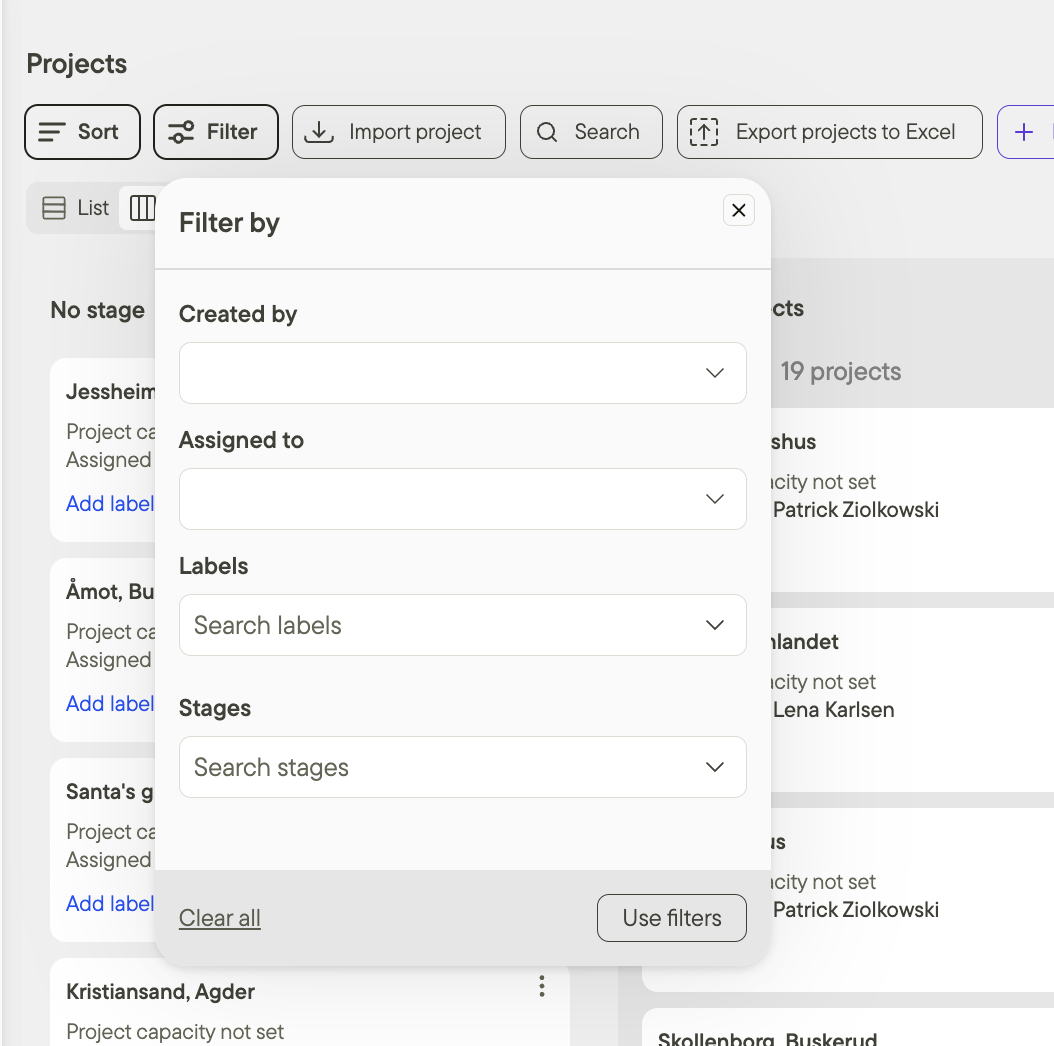
Glint Solar offers multiple project views to support different needs. Understanding these views is essential for effective decision-making.
Find different view options at the top of the project list, above the first project.
List view with map
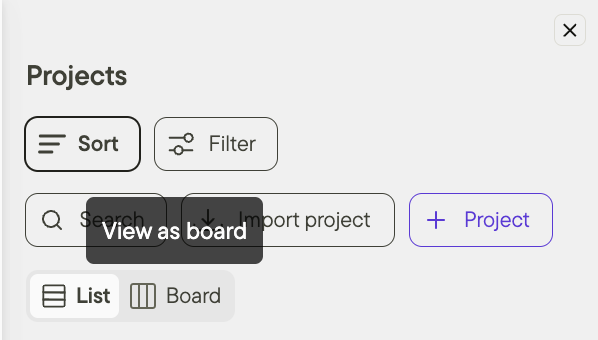
The list view with map shows your projects' stages by location. This provides real-time insights into project clusters, progress patterns, and potential bottlenecks.
Projects appear as colored dots on the map, matching their stage colors. Multiple nearby projects form clusters, displayed as pie charts showing the distribution of project stages. Click any cluster to see its contained projects. You can also click directly to the project from the list shown by clicking on the cluster, and you will be taken zoom to fit to the selected project.
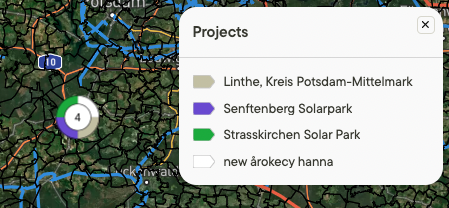
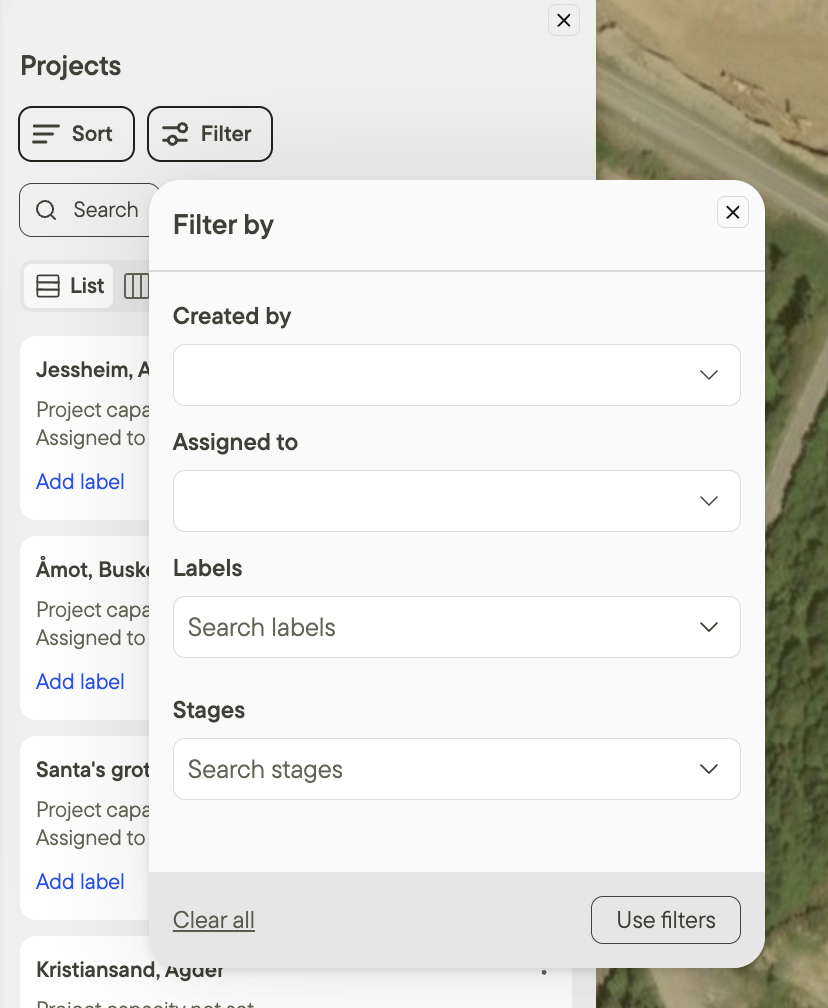
There are multiple ways to sort the list of projects, as well as multiple different criteria for filtering the projects.
Board view
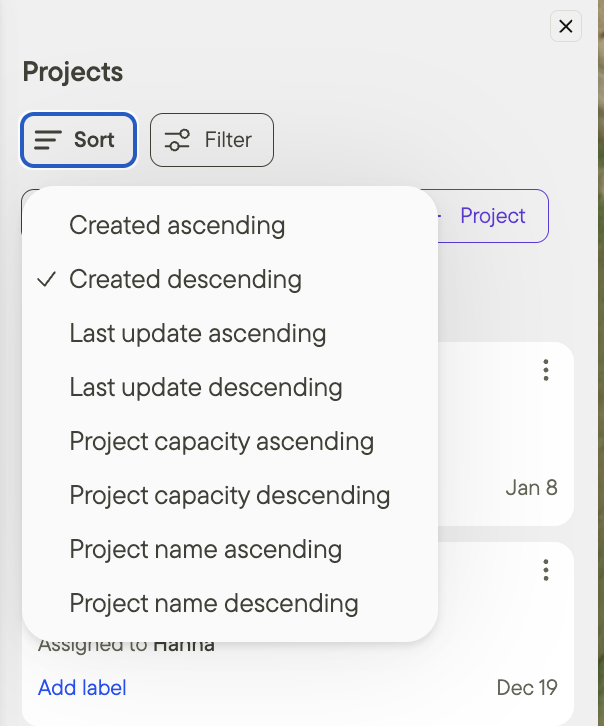
Use the board view for a comprehensive progress overview, showing project counts and total capacity per stage. Filter by labels, project owner, and other criteria for detailed analysis.
Projects can be easily moved between stages using drag and drop, or by clicking on the menu to the right of the stage name and pressing "Move stage right", which will automatically update the project count and the total capacity per stage.
Customize stages by editing their names, colors, and order. To delete a stage, first ensure it contains no projects, then click on the menu to the right of the stage name, and press delete.
Additional resources
Learn how to create your first project in Glint Solar.
Check out our full onboarding tutorial videos here.
Read more about solar site planning in our complete guide here.