
Editing lines and polygons
How to edit lines and polygons
Object properties
- Click on an object — this will open the object information window.
- Edit the name, description, colour, opacity, setback or buffer and line width in the object information window.
Object shape and length
- Simply click on the object and move any existing point as desired.
- Click to create new points on lines and polygon edges and move those.
- Remove a point by clicking on it and pressing delete.
Copy and Paste tools
You can copy any object by clicking on the object then pressing ⌘+C or right clicking (control-click on Mac) and selecting Copy in the window that appears. You can paste a copied object:
- Into the same project in which it was copied.
- Into a different project from which it was copied.
- Into a new project.
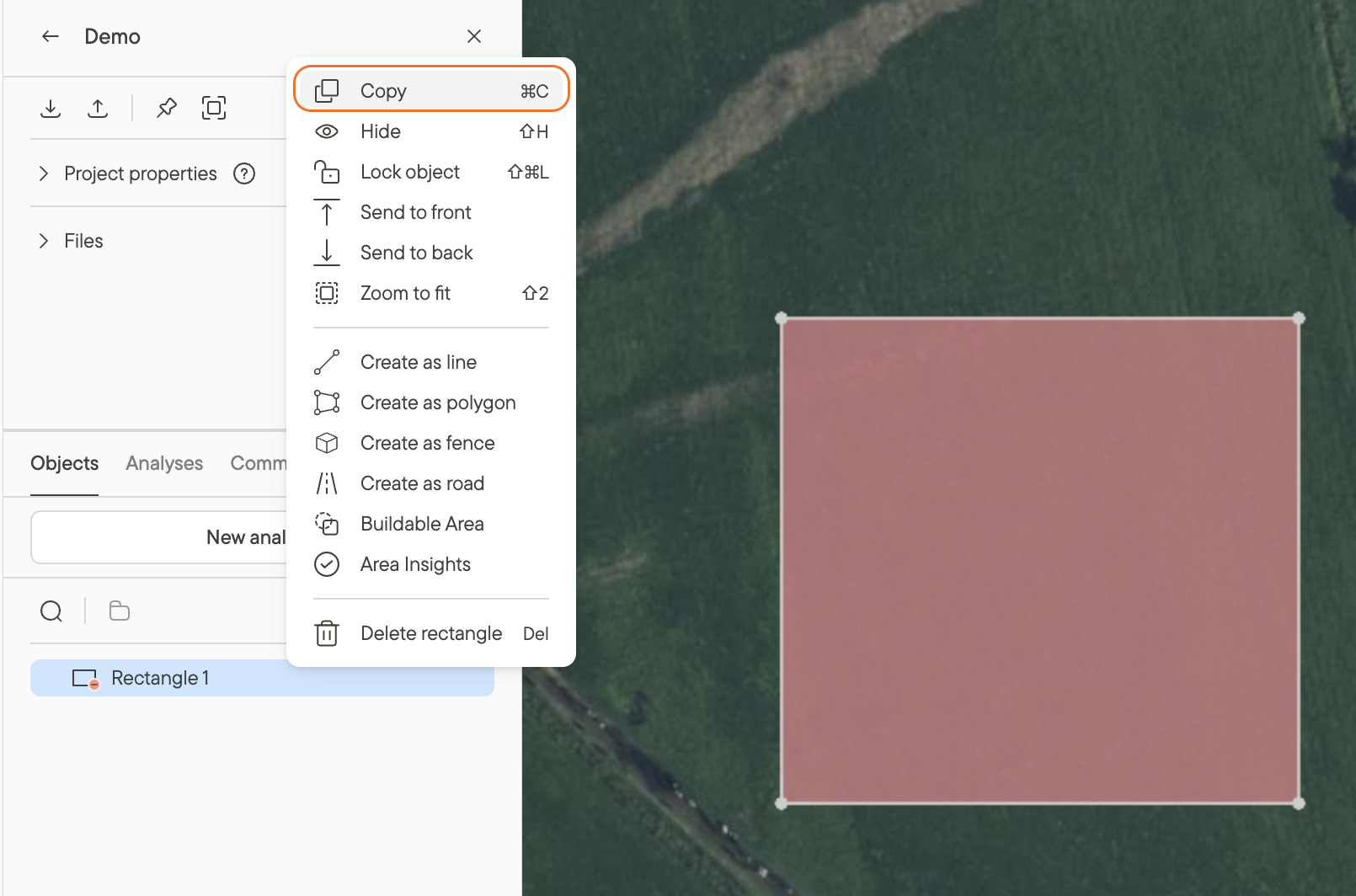
To paste the object click ⌘+V.
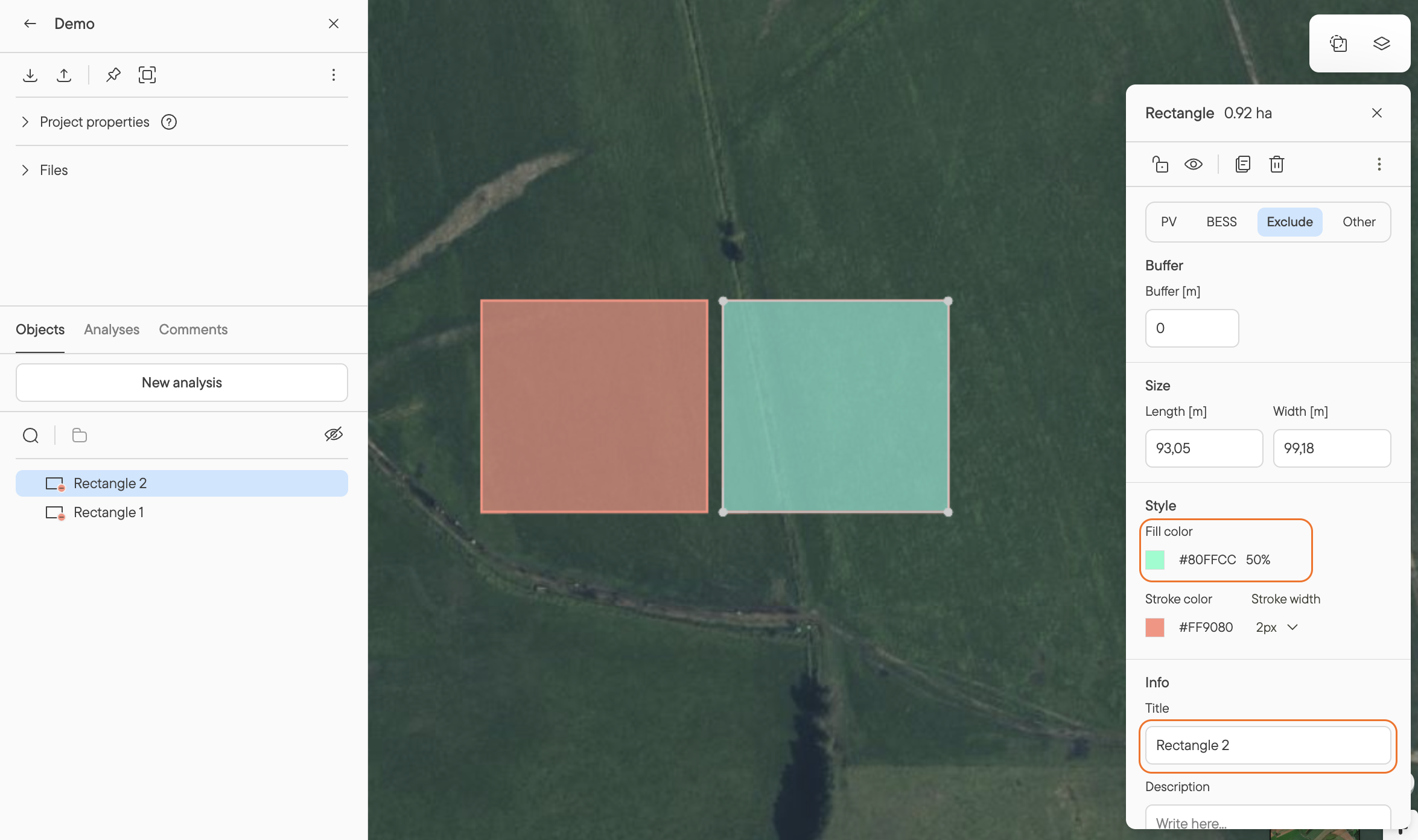
When pasting an object into the same project that it was copied from, the new object will appear in the object list directly above the copied object.
To differentiate the copied object from the original you can change its colour and its name in the object information window
Undo and Redo
You can reverse your last action (undo) or reapply an undone action (redo). This function is often found in text editors and design tools.
Undo: Reverts the most recent change to return to a previous state.
Redo: Reapplies the last undone change, effectively re-executing the action.
How to use it:
- Undo: cmd/ctrl+z
- Redo: Shift+cmd/ctrl+z or cmd/ctrl+y
- Delete point while drawing: Backspace
Remember, you can always access the keyboard shortcuts in 'Menu' > 'Keyboard shortcuts
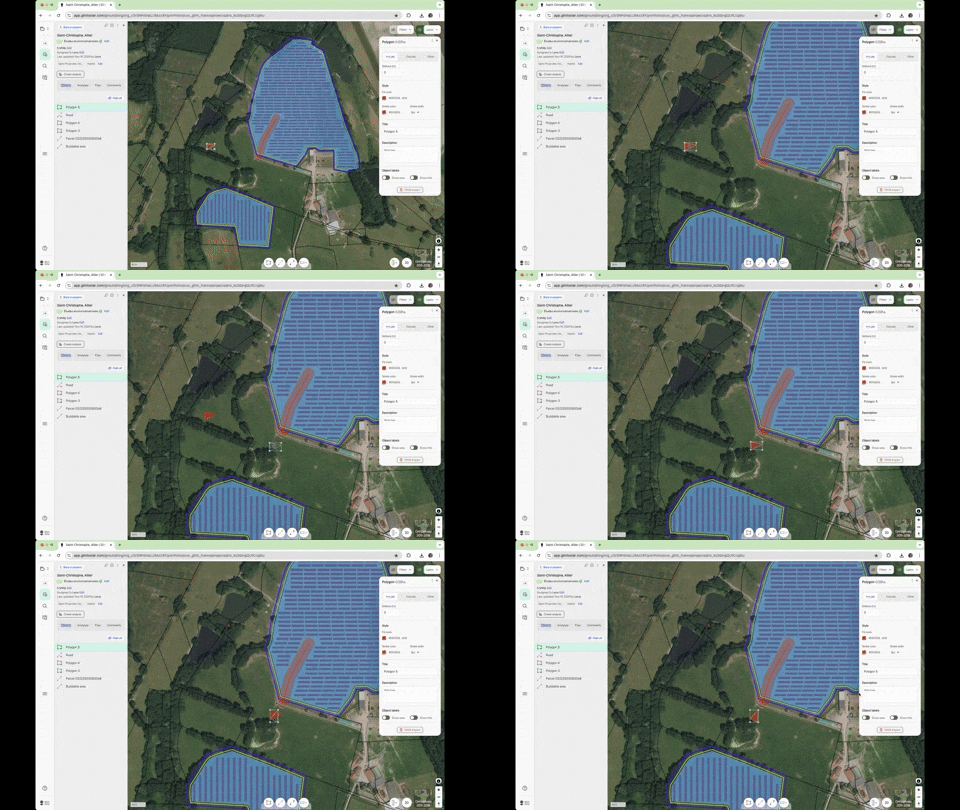
Undo and redo works with the drawing tool and across the rest of the product too. Take a look at the video below to see more uses of the undo and redo tool.
Move and rotate polygons
You can rotate and edit the placement of polygons in your projects.
How to use it:
- Double-click on an object — a white square with points at each corner will appear around the object
- Move: Click on the object and drag it to the preferred place on the map
- Rotate: Place your cursor outside one of the points at the corner of the white square — your cursor will become a small curved line with an arrowhead on each side. Click and move your cursor to rotate the object.
Create polygon as line / Create line as polygon
You can quickly add the boundary of a polygon instead of drawing it manually. To do this:
- Create a polygon in a project — either copying a parcel or using the drawing tool.
- Copy that object using by pressing ⌘+C or right clicking on the object.
- Paste the object by pressing ⌘+V.
- Right click on the second object and select Create as line.
Create object from a setback / buffer
You can quickly create an object from a setback or a buffer To do this:
- Create a polygon in a project — either copying a parcel or using the drawing tool.
- Add a setback (for Include objects) or a buffer (for Exclude and Other objects).
- Right click on the object and select Create polygon from setback / buffer.
Additional resources
Have more questions about changing object properties?
Want to merge polygons to create a new area?
Read our articles Design in a click and Creating your first project in Glint Solar for more help.