
Comments, threads & mentions
Comments help you keep track of decisions, questions, and to-dos without leaving Glint Solar. You can add comments to projects, parcels, contacts, and to any location on the map.
Adding a comment
To add a comment in the map, all you do is:
- Right-click anywhere on the map and select Add comment. You can also open the Comments and hit the Add comment button there.
- Type your comment and send it — it appears as a pin on the map at that exact location.
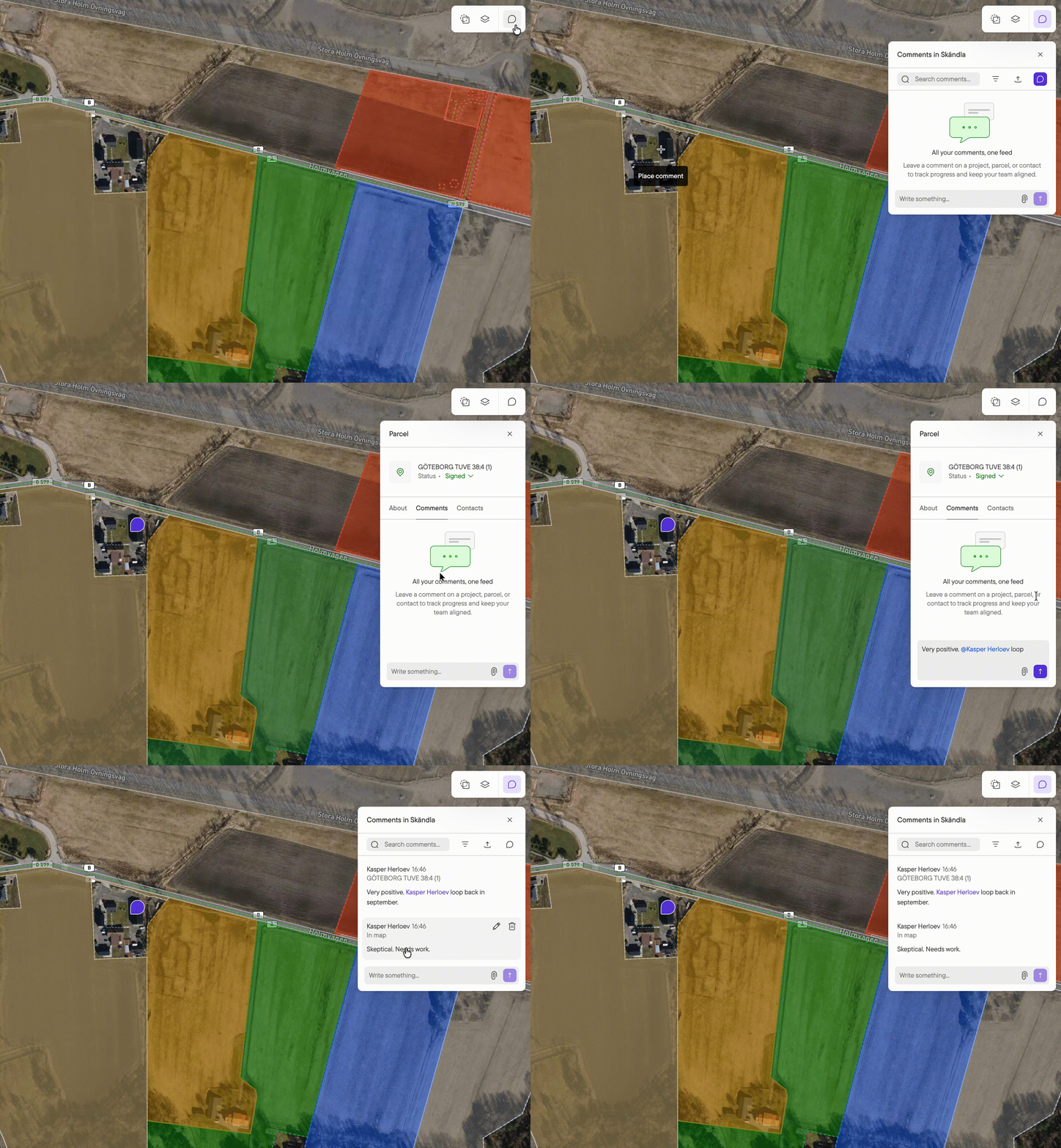
For comments on contacts, locate the contact and change tabs to comments. The same applies to parcels.
Projects can be commented on as well. To a add a general comment to project, simply open the comments panel in the upper right corner and start typing in the comments field in the bottom and hit Submit.
Viewing and replying to comments
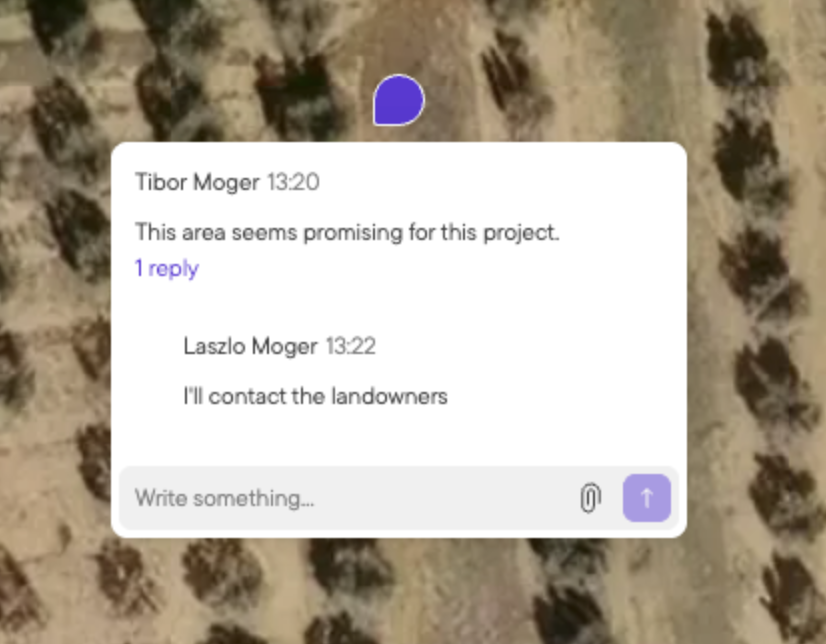
- Click a comment to open it and see the full thread.
- Reply directly in the thread to keep the conversation together. Participants are notified when a reply is sent in a thread.
Mentioning teammates
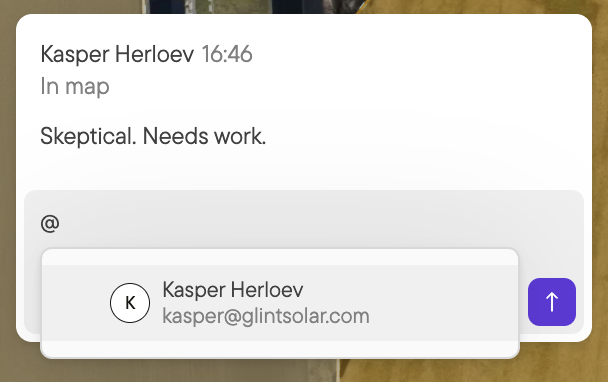
Type @ followed by a name to mention anyone in your portfolio. Mentioned teammates get an email notification and can click View comment to jump straight to it.
Anyone who replies to a thread you're part of is notified by email too. You can turn these email notifications off in your "My settings" area if it becomes too much.
Showing or hiding comments on the map
- Press Shift+C, or use Show/hide in the right-click menu, to toggle comment pins on or off.