Adjusting my settings in Glint Solar
My settings in Glint Solar
Personalize your Glint Solar experience! When you create projects and yield reports, your name will be visible as the author. You can edit your name and job title by accessing My settings from the Menu button found in the lefthand sidebar on your homepage. These settings are personal to you and affect only your profile.
Individual application language
You can select your preferred application language in My settings as well. Currently, Glint Solar is available in English, French and German.
Units System
Under My settings, You can also easily select your preferred units system: Metric or Imperial.
Slope Unit
You can determine whether or not you’d like your slope unit to be measured in degrees or percent. This personalization is also found under My settings.
Two-factor authentication for enhanced IT security
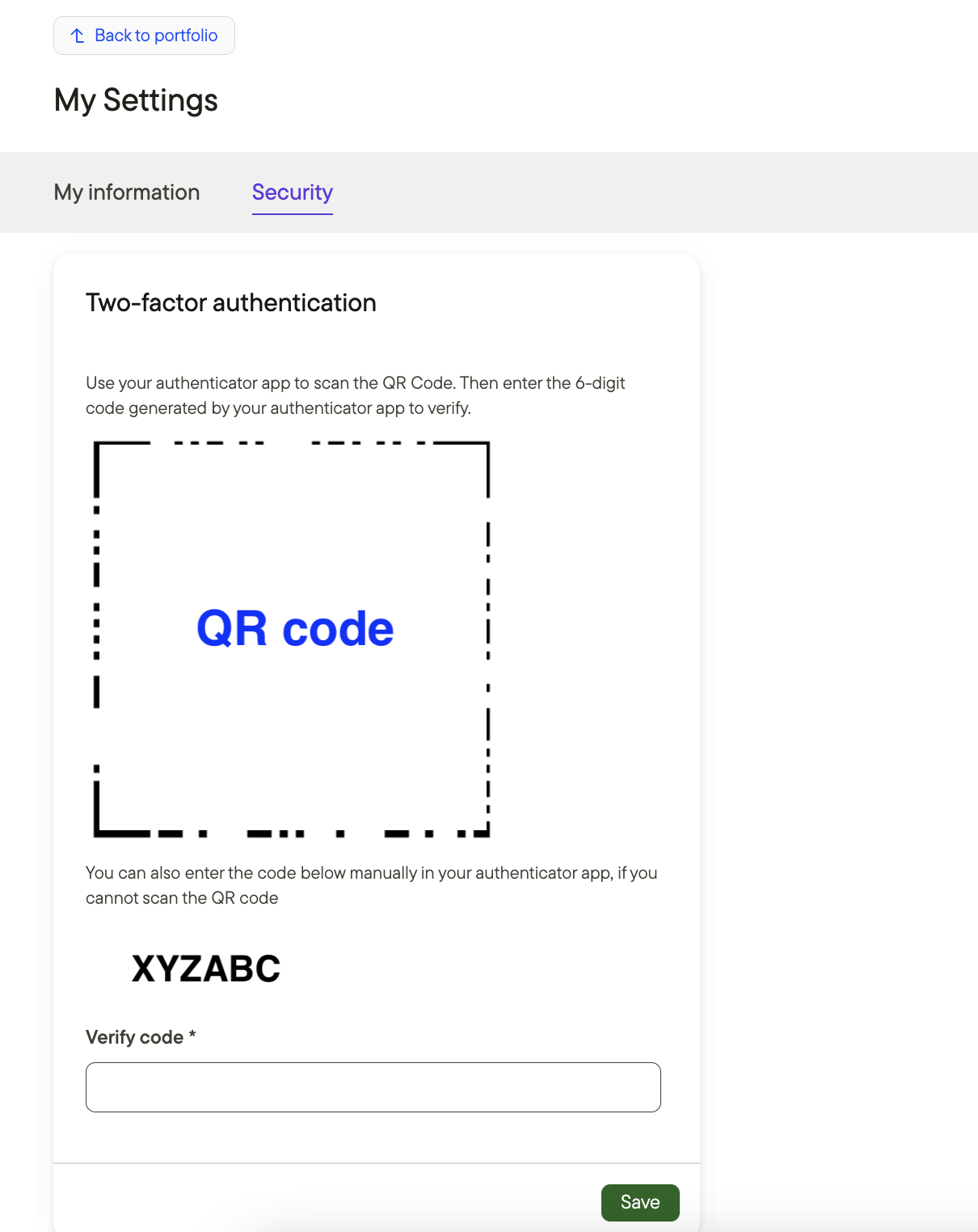
To add an extra layer of security to your account, you can enable two-factor authentication in Glint Solar. Here's how:
- Install an authenticator app on your phone
- Navigate to My Settings > Security in Glint Solar and scan the QR code
- Enter the code displayed in your authenticator app and click save
After setup, you'll need to enter a six-digit code from your authenticator app each time you log into Glint Solar.
Additional resources
To learn more about configuring PV settings for the best yield report output, read this article.
Now that you’ve set yourself up, it’s time to start using Glint Solar. Check out this article to learn more about Creating your first project in Glint Solar.
Want to share you work with the team? Invite team members by following this guide.