
Changing the basemap
You can easily change the basemap which you are using in Glint. This can be useful in order to adjust the information you are displaying, improve the visualization of your site when speaking to landowners or make the visibility of objects and layers better.
How to change the basemap
The basemap that is in use is shown in the bottom right of the screen in Glint. There are two ways you can change the basemap that is applied:
Use your cursor
- Hover your cursor over the basemap shown at the bottom — between the 2D button and the zoom tools.
- Move your cursor up to the basemap you want to use.
- Click on the basemap you want to use.
Use the keyboard shortcut
- Press Ctrl+M to open the list of available basemaps.
- Keep holding Ctrl and press M to cycle through the basemaps.
- Let go of M to select the basemap that is highlighted.
The order in which you cycle through the basemaps is determined by how recently they were used. The basemap used most recently will be the first available basemap. This is to help you quickly switch between the basemaps you use most frequently.
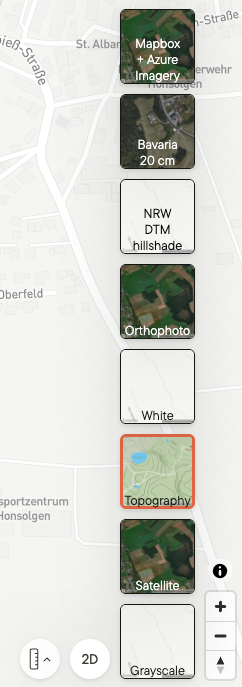
Available basemaps
The basemaps available depend on the country in which you are working. If there are any basemaps which you would like Glint to add, please contact us with details of the request.
Additional resources
You can find out more about keyboard shortcuts here.
Take a look at our getting started articles to learn about the basics of Glint.