
Glint AI - The Design Agent
Glint AI
Let Glint AI take care of repetitive design tasks, so you can focus on what you do best! Talk to Glint AI in natural language. It will help you get answers, explore your work, and complete tedious tasks.
Glint AI first release: the Design Agent
Some design tasks are simple but slow. Placing trees one by one along a boundary, restyling twenty exclusion zones, or resizing every tree in a row takes many clicks and adds nothing to the quality of your design.
The first release of Glint AI is the Design Agent. You describe what you want in plain language, and Glint AI does the drawing and editing for you. For now, Glint AI focuses on drawing tasks. It can also run several analyses for you, one after the other, so you can compare the results and pick the best option.
Because Glint AI knows your project and its context, it can also guide you in your daily work. Stuck? Unsure why your choice of batteries doesn't work on your current project? Ask Glint AI.
🆕 New feature. The Design Agent is the first release of Glint AI. We'll keep adding capabilities, and we love hearing your feedback. Have an idea, or did something not work as expected? Please reach out to the team if you have any more questions or feedback.
Where to find Glint AI
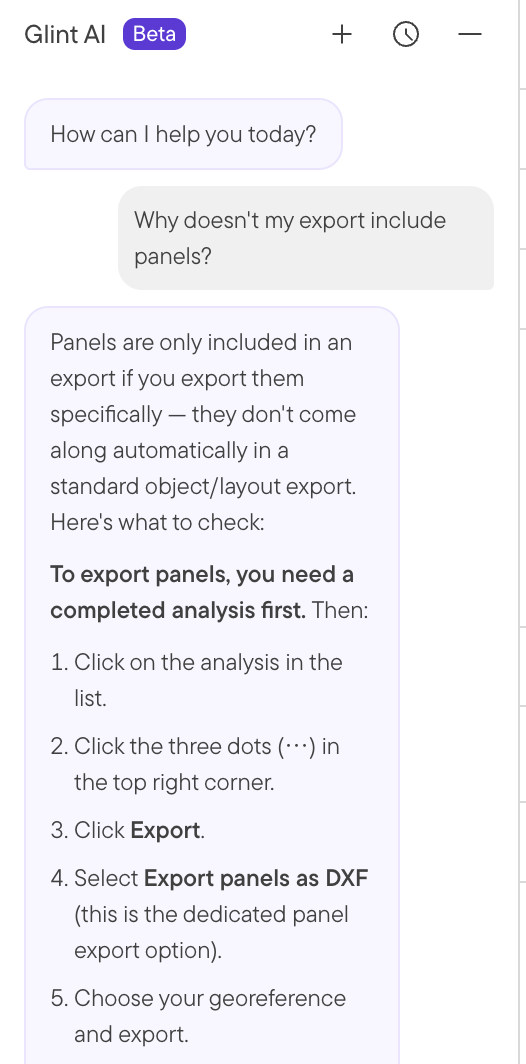
Look for the ★ icon at the bottom left of your screen. Click it to open the chat panel. Start with something simple, or pick one of the suggestions Glint AI offers.
To use Glint AI, you need Creator access or higher to the portfolio you're working in.
How it works
Type what you want in the chat panel. Glint AI either does it right away, or asks you a question first if it needs more detail.
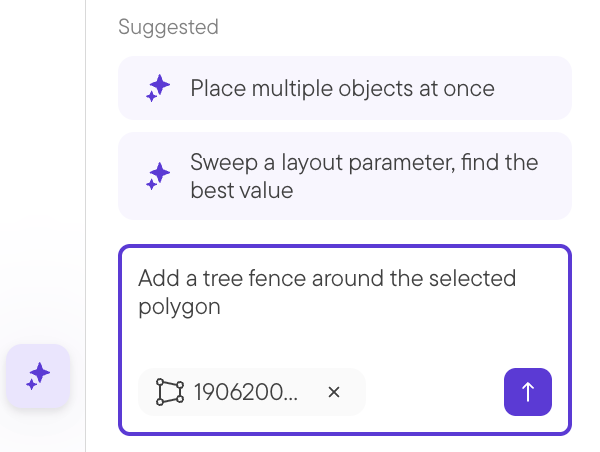
Use your map selection. A nitfy little trick: Whatever you select on the map, whether an object, a parcel or a map feature, comes along with your next message. When there are several options, pick the ones you want to work with, and tell Glint AI what it should do!
Undo works as usual. Press Cmd+Z (Ctrl+Z on Windows) to undo a drawing change, whether you made it or Glint AI did. Undo covers drawing changes only, not configuration changes or analyses.
Examples
Here are a few tasks where Glint AI saves you the most clicks.
Add a wind turbine at a specific point
Maybe you're building a new PV or BESS site near an existing Wind site? If you know where a turbine should go, give Glint AI the coordinates. For instance: "Add a wind turbine at 59.9139, 10.7522."Glint AI places the 3D object at that exact point. You don't need to find the spot on the map yourself.
Bulk edit objects to change their styling
Restyling objects one by one is slow. Select the objects on the map, or describe them, and tell Glint AI how they should look. For instance: "Make all exclusion zones red with 40% opacity." Glint AI updates every object in one go.
Add trees along a line
Glint AI can place many 3D objects evenly spaced along an edge of your site, the whole perimeter, or a line you choose. For instance: "Plant oak trees 10 meters apart along the west side of the site boundary." If Glint AI needs a reference line, it asks you to pick one on the map. Once the trees are in place, you can change their dimensions all at once. For instance: "Make all the trees along the west side 8 meters tall."
Run several analyses and compare them
Testing different settings usually means changing a value, running an analysis, waiting, and repeating. Glint AI does this loop for you.
For instance: "Run the analysis with tilt 10°, 15°, 20°, 25° and 30°."
Here's what happens:
- Glint AI confirms which configuration to start from.
- For each value, it changes that one setting and starts an analysis, named after the value (for example "Tilt 15°").
- It waits for all runs to finish and shows the progress in the chat.
- Before each run, it checks that the configuration still has the values you agreed on. If something changed, it asks you before running.
You decide which setting to test and which values to try. Glint AI never suggests them for you.
You can also compare other setups, for example by running only some areas ("Run only the north and east areas") or by using a different configuration for one area.
Compare the results. Ask "Compare all analyses in a table". Glint AI shows capacity, specific yield and other key figures side by side in the chat. You can also ask for details from a single report, like P50 annual energy, the loss breakdown, monthly energy or BESS income and cycles, without opening the report.
Keep the best, clean up the rest. Ask "Which runs performed worst?". Glint AI proposes the analyses with the lowest specific yield and deletes them only after you confirm. Deleted analyses can't be recovered. Glint AI compares technical results only. It has no notion of financials (LCOE or IRR), so the final choice is yours.
Ask for help and guidance, in context
Glint AI can also help you use Glint. I
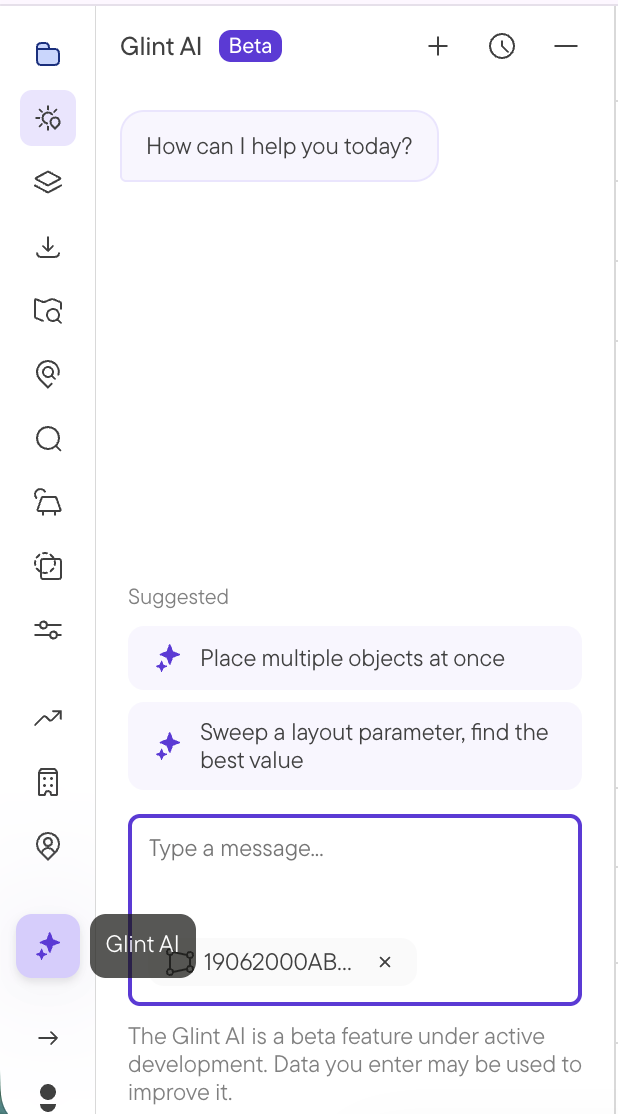
f you run into an error or a warning, ask Glint AI about it. It explains why it happened and guides you to a solution. For instance: "Why doesn't my choice of batteries work on this project?" You can also ask how-to questions, such as "How do I export my layout?". Glint AI answers using Glint's help content.
Tips for good results
- Be specific. Give distances, sizes, spacing and colours as numbers.
- Select first. Select the objects on the map, then write your request.
- One task at a time. Short, clear requests give the best results.
- Check the result. If something isn't right, undo it or ask Glint AI to adjust it.
What Glint AI can help you do today
Here's the full list of what Glint AI can currently do.
Finding your way around
- Search for anything, like projects, portfolios, past analyses, settings pages or an address, and jump straight to it.
Projects
- See a list of your projects or create a new one, right from the chat.
Land and parcels
- Copy parcels you've selected on the map into a project, so you don't have to do it by hand.
Drawing and editing
- Draw circles or rectangles by describing their size and location.
- Draw custom shapes (polygons) when you know the exact points, for example based on something already in your project.
- Lay out a battery (BESS) area with the dedicated battery placement tool.
- Resize or rotate a shape while keeping its name, styling and type.
- Edit details on an object, like its description.
- Copy, paste or delete objects.
- Group, move and reorder objects.
- Combine shapes: merge two shapes, find where they overlap, or subtract one from another.
- Show or hide objects on the map.
- Turn a shape into a fence or a road.
- Create a shape from a setback distance (a buffer around another object).
- Connect an object to the nearest road, or remove a section of road.
- Undo or redo recent drawing changes.
Placing 3D objects
- Place a single 3D object, like a tree, fence post or piece of equipment.
- Place a 3D object at given coordinates.
- Place many 3D objects evenly spaced along an edge of your site, the whole perimeter, or a line you choose.
- Ask you to pick a reference line on the map when it needs one.
- Adjust the dimensions of a 3D object.
Land suitability
- See your saved constraint profiles and the details of each one.
- Switch the active constraint profile for your project.
- Calculate the buildable area for a selected area.
- Copy buildable-area results into your project, or discard them.
Solar and battery configurations
- See your saved PV or BESS configurations and the details of each one.
- Choose which configuration to use for your project.
- Update settings on your current configuration, or only for specific areas without changing your saved profile. Glint AI only changes what you ask for. It never guesses or fills in numbers on its own.
- Save changes as a new configuration, or delete one you no longer need.
Running analyses
- Run a full analysis (solar, battery or both) using the areas visible on your map and the selected configuration. Tip: hide an area to exclude it from the analysis.
- Run several analyses in a row, changing one setting each time, for example tilt or row distance.
- Compare analyses in a table, and pull key figures from a report without opening it.
- Set the grid connection limit.
- See, inspect or delete past analyses. Glint AI can propose the weakest runs to delete, and waits for your confirmation.
- Wait for running analyses to finish before continuing the conversation.
Making the conversation easier
- Offer choices to pick from, and suggest quick replies you can click.
- Answer how-to questions using Glint's help content.
- Show information as a table in the chat when that's clearer.
Quota
The usage of Glint AI is currently free. As with other AI-based software, we might introduce usage quotas.
Q&A
What can I ask Glint AI? Two kinds of things. First, design actions: drawing shapes, adding roads and fences, adding 3D objects, placing a 3D object at a specific coordinate, and placing objects along a line. Second, help with using Glint: if you run into an error or a warning, Glint AI explains why and guides you to a solution.
How do I use Glint AI? Click the ★ icon at the bottom left of your screen. Ask something simple, or follow its suggestions.
Can Glint AI draw a line of trees for me? Yes. See Add trees along a line.
Will Glint AI do anything behind my back? No. Glint AI doesn't do any tasks in the background. It only acts when you ask, and you see every change on the map.
What if Glint AI makes a mistake? Undo it with Cmd+Z (Ctrl+Z on Windows), or ask Glint AI to fix it. Undo covers drawing changes, not configuration changes or analyses.
Will Glint AI change my settings without asking? No. Glint AI only changes what you ask for. It never guesses values or fills in numbers on its own.
Why won't Glint AI edit some objects? The objects are probably locked. Glint AI will ask you to unlock them first.
Can Glint AI see my map? Not as a picture. It works from the names, locations and details of what you've selected, not from what's on your screen.
Is my project data used to train AI models? Your project data is not used to train any AI models. However, we may see what you have asked in ordre to troubleshoot or decide what to add next.
Can I disable Glint AI for my team? Not at the moment. Let us know if that is something you would like to do.
Can Glint AI optimise my hybrid site for me? Not at the moment. You can, however, ask it to run several analyses and compare the results.
Can Glint AI screen land for me? Not at the moment.
Can Glint AI make charts for me? Not at the moment. It can show results as a table in the chat.
Can Glint AI help me select a project based on its business case? No. Glint AI has no notion of LCOE or IRR.
Is there a limit to how much I can use Glint AI? Yes, from October, 2026.