
Merge, intersect, subtract and bulk delete polygons
In Glint you can take several actions on polygons that overlap to create new polygons. These new polygons can be used to represent the objects in your project more accurately and in a more neat and tidy manner. These actions are:
- Merge: The new polygon will comprise the total area of the merged polygons.
- Intersect: The new polygon with comprise the area where the intersecting polygons overlap.
- Subtract: The new polygon will comprise the area left when one polygon has been subtracted the other.
It is also possible to delete multiple objects at once — whether they overlap each other or not.
Merge polygons |
To merge polygons:
- Make sure the polygons you want to merge are adjacent with no space in between.
- Click on the first polygon — either on the map or in the object list.
- Hold Shift and click on the second polygon.
- Click Merge in the window that appears in the top right of your screen.
A new object will appear in the Objects list that is a combination of the two polygons that have been merged. The original polygons will disappear. If you want to keep the original objects in your project, you can copy and paste them so you have two of each before you create the merged object.
When you merge two polygons together, a common setback or buffer can be created for the new object. Merging polygons also lets you create and manage the objects as they exist for your purposes rather than how you found them on the map or in a data layer.
Intersect polygons |
To create a new object from the area where two existing objects overlap:
- Make sure the polygons from which you want to create the intersect overlap.
- Click on the first polygon — either on the map or in the object list.
- Hold Shift and click on the second polygon.
- Click Intersect in the window that appears in the top right of your screen.
A new object will appear in the Objects list that is a combination of the two polygons that have been intersected. The original polygons will disappear. If you want to keep the original objects in your project, you can copy and paste them so you have two of each before you create the intersected object.
Subtract polygons |
To subtract one area from another:
- Make sure the polygons from which you want to create the intersect overlap.
- Click on the first polygon — either on the map or in the object list.
- Hold Shift and click on the second polygon.
- Click subtract in the window that appears in the top right of your screen.
A new object will appear in the Objects list that is the result of the subtraction. The original polygons will disappear. If you want to keep the original objects in your project, you can copy and paste them so you have two of each before you create the intersected object.
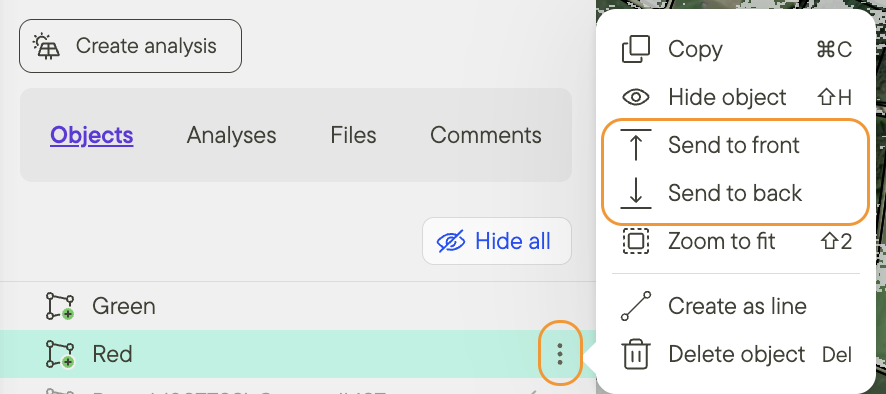
Please note: The polygon that is lower down in your object list will be subtracted from the object that is higher up in your object list. You can change the order of your object list by:
- Right-clicking on an object and choosing the Sent to front or Send to back option.
- Dragging and dropping the object higher or lower in your object list.
Select multiple polygons at once |
To select multiple polygons at once:
- Click on the first object.
- Hold Shift and click another object in the object list to highlight a range of objects.
- Hold Command and click to highlight specific objects in the object list.
Having trouble merging?
Make sure that the two polygons are adjacent — they need to share an edge or overlap to merge.
If there is a space between the polygons, you can simply drag the edge of one polygon over the edge of the other.
Additional resources
Need to measure objects? Read how to do this here.
If you want to learn how to edit a polygon or line, read about this here.