
Collaborating with team members and externals
Collaborating in Glint Solar
This article will help you discover the key components of successful collaboration in Glint Solar. From adding portfolios and team members to effectively using comments and uploading files.
All team members in one or several portfolios
Your Glint Solar portfolio is where the projects live and where team members can collaborate together. Everyone with access to the portfolio can view and edit all projects created by other team members with access. If there are projects you don’t want everyone on the team, or especially, external collaborators to see, you can create a separate portfolio for this purpose. The different portfolios can be navigated from the top left bar on the screen.
Creating and editing portfolios
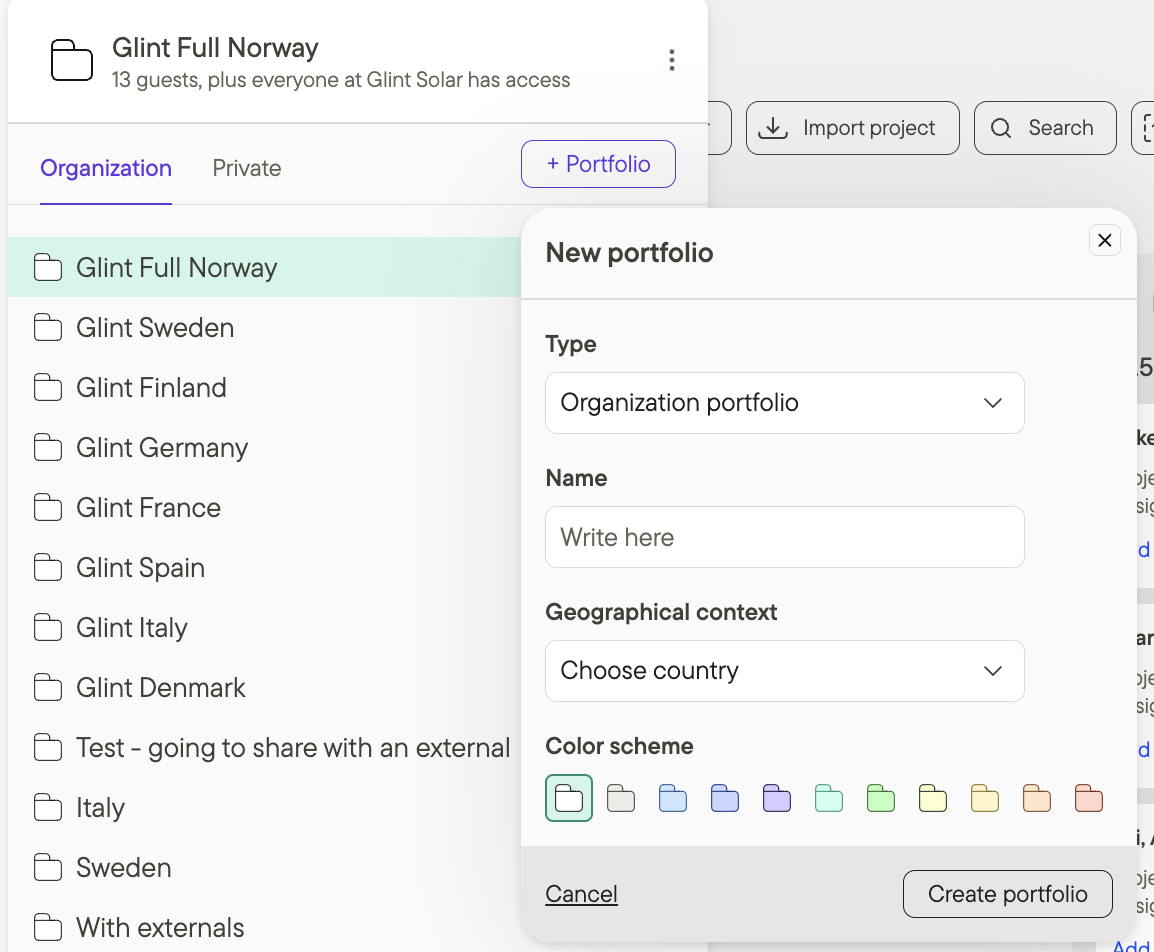
Create and edit portfolios to your liking by clicking on the top left and then +Portfolio.
You have the option to create a portfolio on the organization level or make it private. An organization portfolio is by default available to everyone who is an organization member.
Note that you need to be an organization member to be able to create and edit portfolios. Guest member do not have access to this functionality.
Manage user access for team members and external collaborators
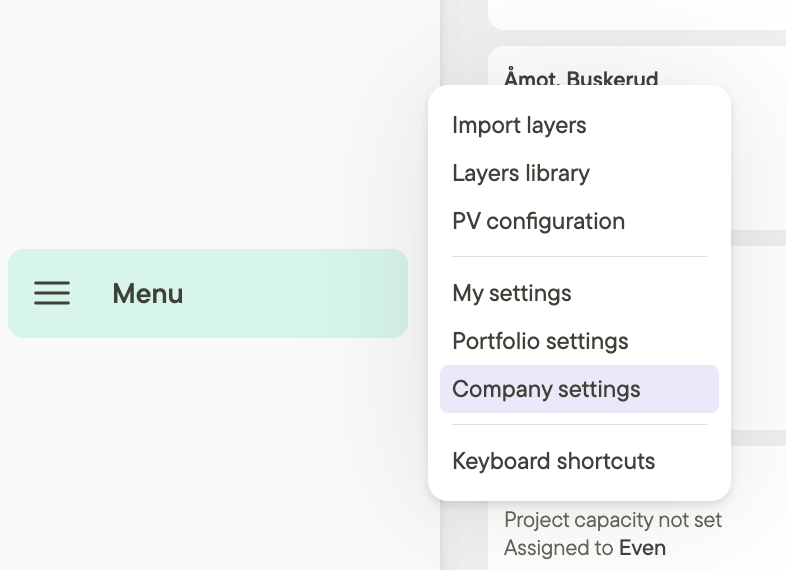
Manage user access for your portfolios by clicking Company settings from the Menu on the left sidebar.
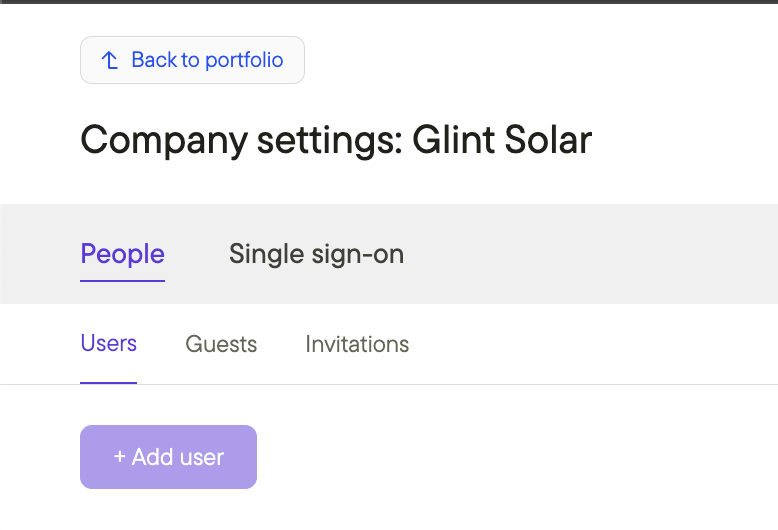
Navigate to the People and then Users pane and click Add user.
They’ll receive an inbox notification with a link to set up their user and access the account. Team members can also be removed from the account by clicking Remove to the right of their name.
Shared portfolios with external collaborators
It is possible to Share portfolios with external collaborators on Glint.
- From the Menu button on the left sidebar, choose Portfolio settings
- Select the People tab to invite new users or adjust user access.
Please see this article for an in-depth instructional video on sharing portfolios with external collaborators.
Move projects between portfolios
Easily move projects between portfolios to ensure the right people are looking at the right projects. To see more on how to do this, please take a look at this instructional video and article: Move projects.
What does collaboration look like in Glint Solar?
Here are three examples of what collaboration in Glint Solar could look like:
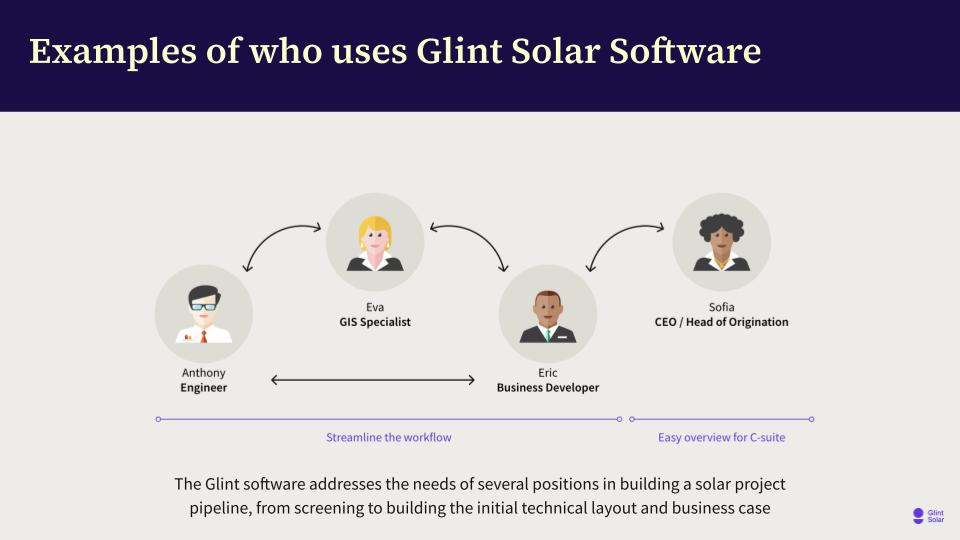
1) Project Developer ↔ Project Developer ↔ Head of Development
The advantage of collaborating within the project or business development team, is to have a unified overview of the project locations and the work progress of the team. Also, collaborating and sharing knowledge is key for strengthening the development process. Examples could be sharing identified risks of a location, advantages near certain substations or grid lines or identifying synergies between nearby projects.
2) PV Engineer ↔ Project Developer ↔ GIS Manager
This is the power trio of solar development. Having these functions collaborate on one platform will ignite the magic and break down the silos. This set up is the core of what you can do with Glint Solar. As a PV Engineer you can help the Project Developer by setting up different PV profiles and also evaluate layouts that were created. You can also export the project as both .dxf and .kml and continue the detailed design in another tool. As a GIS Manager, you can make data requests, import data layers and also evaluate projects created by the Project Developers. The handover process will be smoother with all the information in one place
3) Head of Development ↔ External collaborators
When in the solar business, external collaboration is inevitable. If you're working together with partners, Glint makes it easy for you to separate the work on the same platform. Simply create different account to keep the project portfolios separate between external and internal teams. As a Head of Development, you can have access to both accounts to make sure you stay on top of all the projects created for all the teams.
Company Settings
Additional resources
Visit the the Importing and exporting with Glint Solar article for more details on migrating work to/from Glint Solar.
The How to invite users and the Project portfolio overview articles are also great places to start for learning the basics of collaboration in Glint Solar.