
Import projects
You can import existing projects into Glint as well as creating projects from scratch.
How to import projects
Import your existing projects into Glint quickly with these simple steps:
- Click on Import project.
- Select the file to import.
- Review the objects to be imported.
- Click Import project.
- The project will be created with your selected objects.
Limits to importing projects
You can import up to 300 objects at once. After creating your project in Glint, you can add more objects through additional imports or by using the drawing tool.
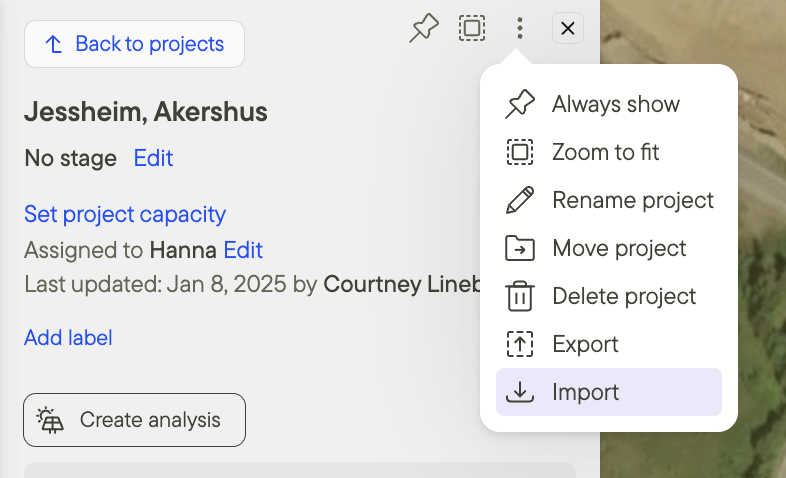
Import to an existing project
To add objects to an existing Glint project:
- Click on the three dots in the top right corner of the Project window.
- Click Import.
- Review the objects to be imported.
- Click Import project.
- The objects will be added to the project.
Additional resources
You can also import data as a layer instead of as a project. Find out how here.
To find out how to create an analysis for a project you have imported click here.