
Importing and exporting with Glint Solar
Glint Solar allows you to import and export files to streamline collaboration, accelerate your workflow, and support discussions with landowners and permitting authorities. Here's how to use imports and exports in Glint.
Import
You can import data to Glint Solar as layers or projects. With just a few clicks, you can add essential information for site selection and constraint analysis, or continue work on a project shared by a colleague or partner. To view supported file formats for imports, read this article.
Import data as a layer
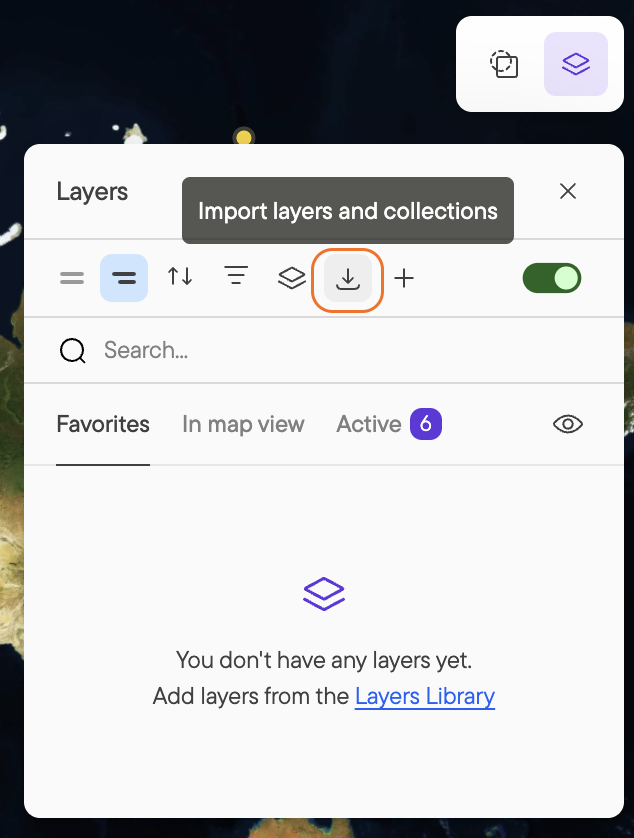
Click here to read our guide on importing data as a layer, which includes a short video and instructions for using imported layers.
Import data as a project
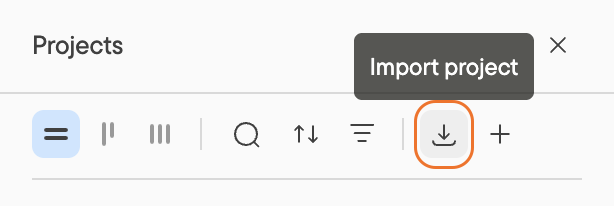
Click here to learn about importing data as a project. You can import data as either a new project or into an existing one. The guide includes a helpful video and information about import limits.
Export
Glint offers several export options. Here's a guide to each method.
Objects
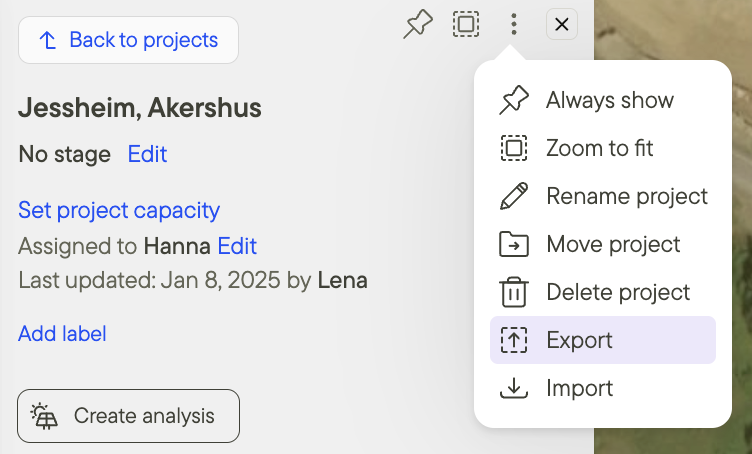
To export objects in your project:
- Click on the three dots at the top of the Project window.
- Click Export.
- Select the objects you want to export.
- Choose the file format for export.
- Click Export.
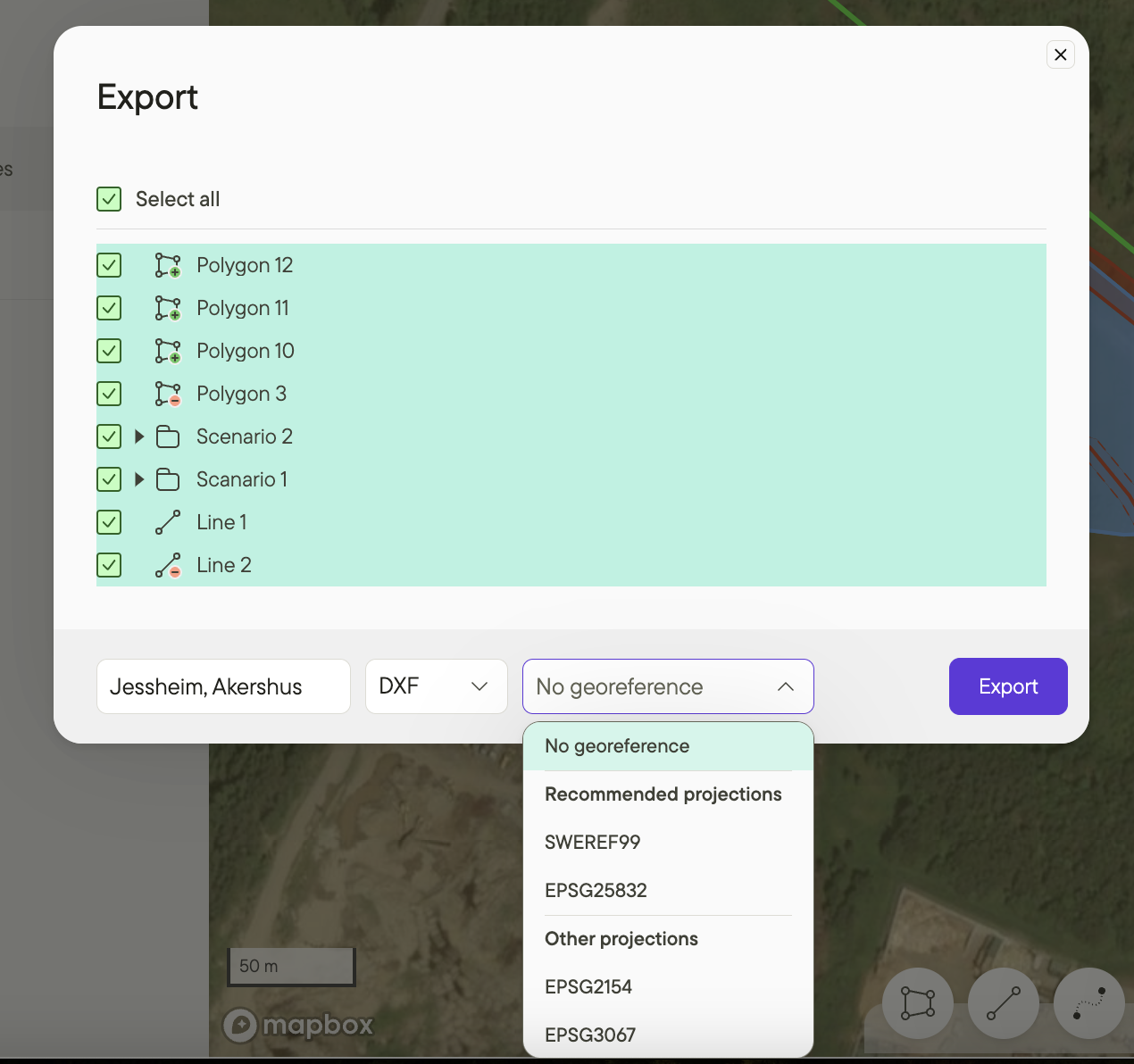
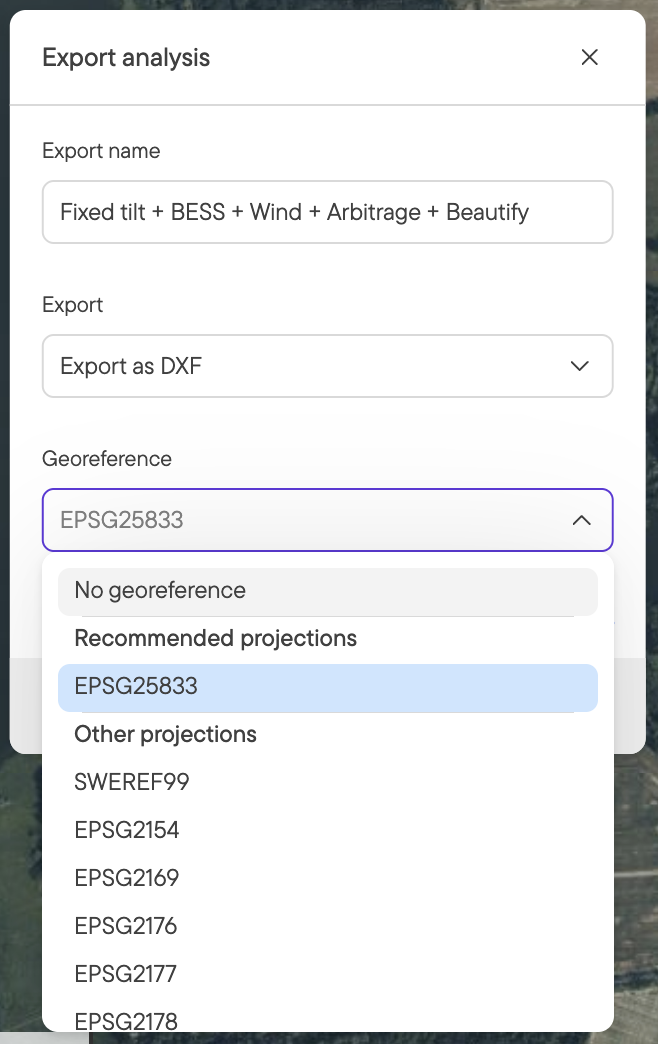
When exporting to DXF, you have the option to set georeferencing. For AutoCAD exports, we recommend:
- Setting appropriate georeferencing for the site's country location.
- Setting the same georeferencing in AutoCAD when importing the DXF file to match what you set in Glint.
Glint will recommend projections for your DXF export.
- You'll see a warning if the selected projection isn't recommended for your project.
- Projections are ordered by precision, with the most precise option listed first.
- Use the searchable projection selector to find specific projections quickly.
For questions about georeferencing and exports, please contact us—we're happy to help.
You can also export objects from your project through an analysis report:

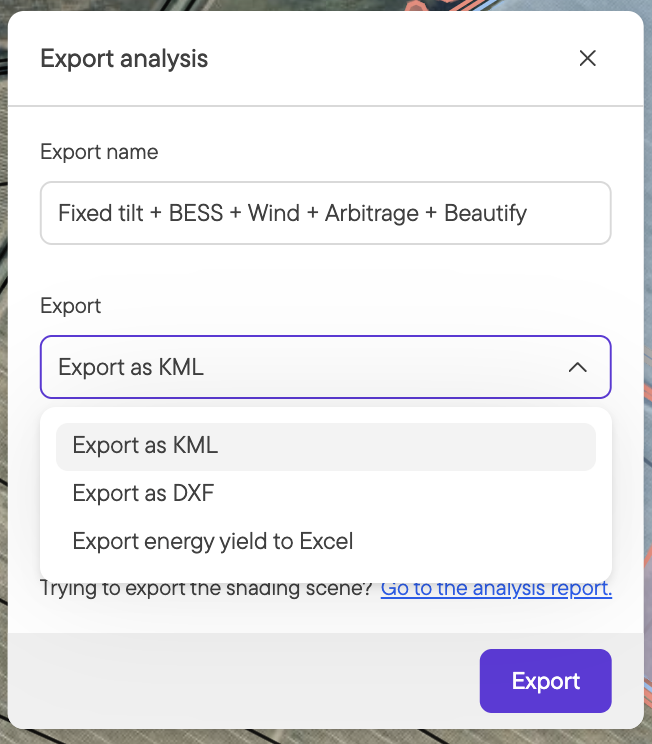
Supported formats
Glint Solar supports the following formats when exporting objects and analyses
- KML
- GeoJSON
- DXF
- Shapefile
- GeoPackage
Panels
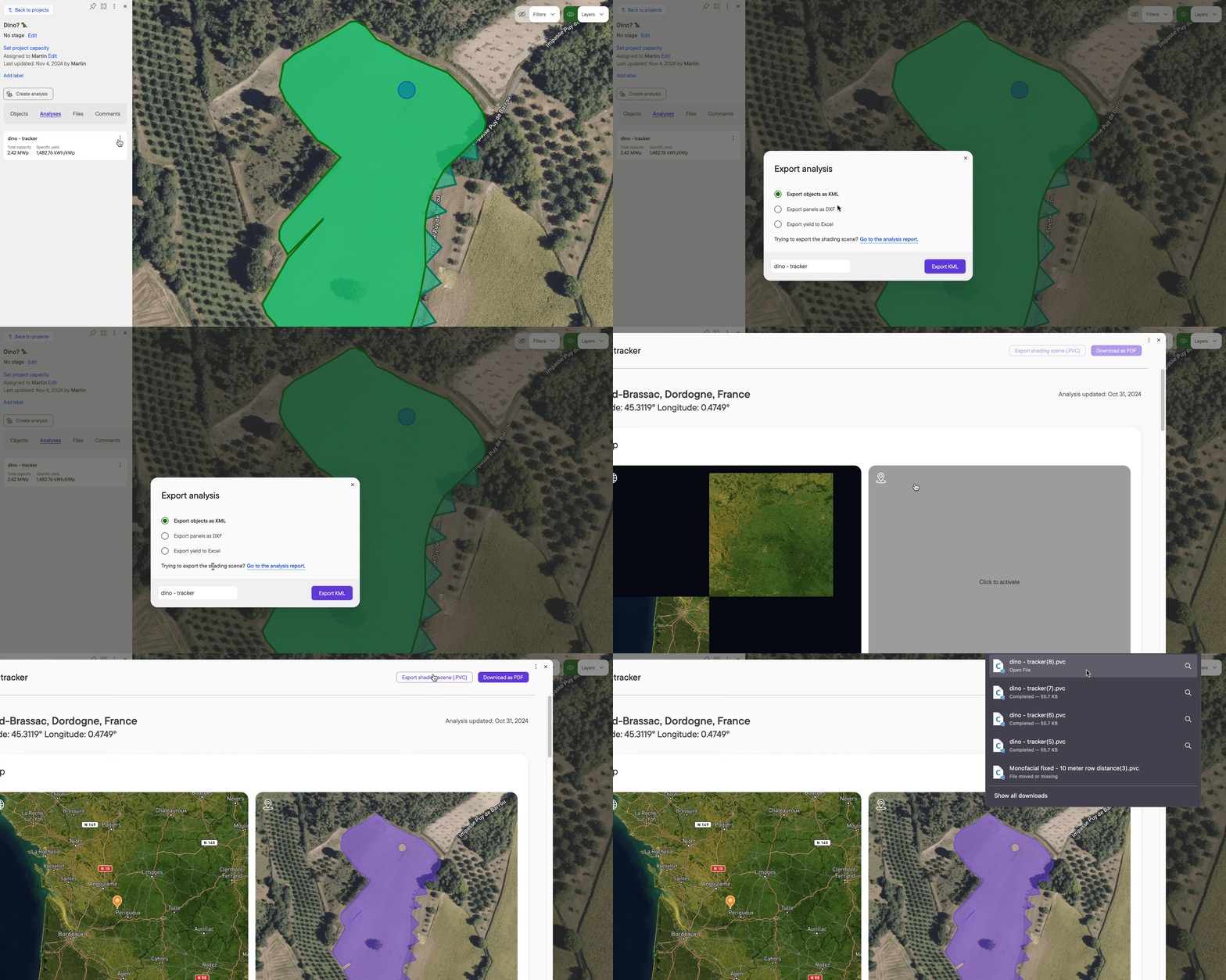
To export panels from a project, first create an analysis. Then:
- Click on the analysis.
- Click on the three dots in the top right corner.
- Click Export.
- Select Export panels as DXF.
- Choose the appropriate georeference.
- Click Export.

Yield
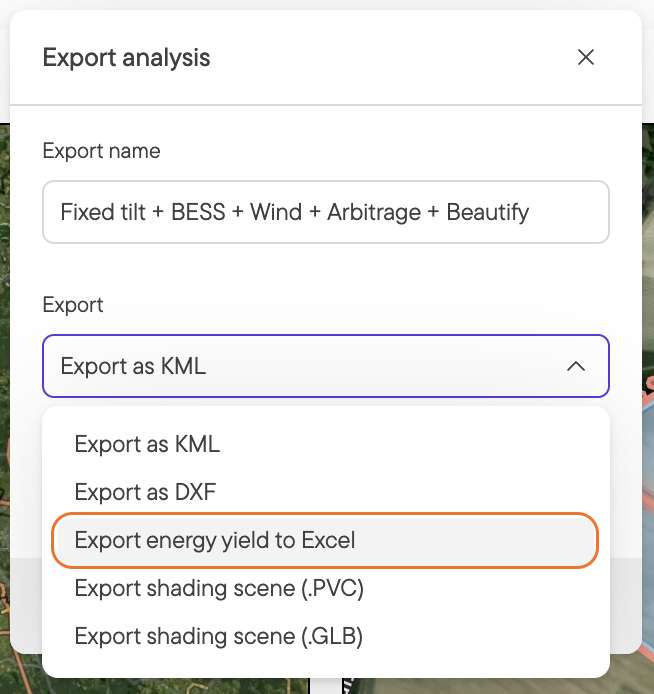
To export yield data from a project, first create an analysis. Then:
- Click on the analysis.
- Click on the three dots in the top right corner.
- Click Export.
- Select Export yield to Excel.
- Click Export.

Board view
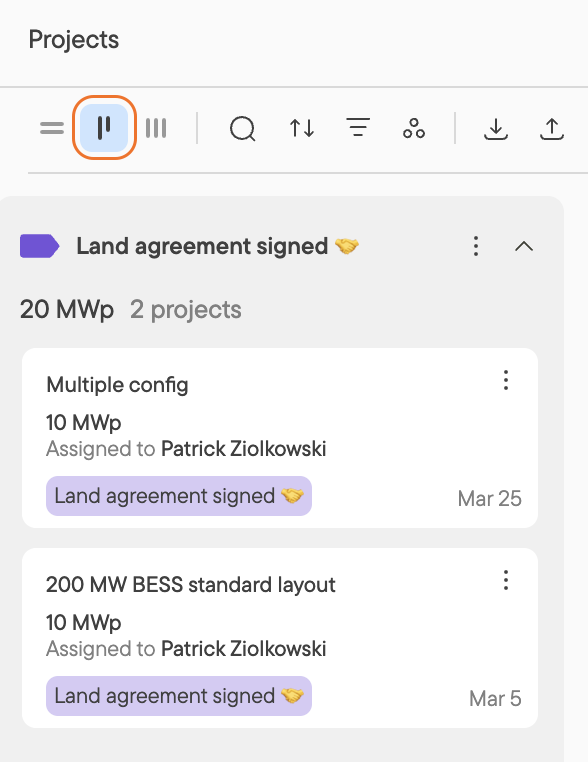
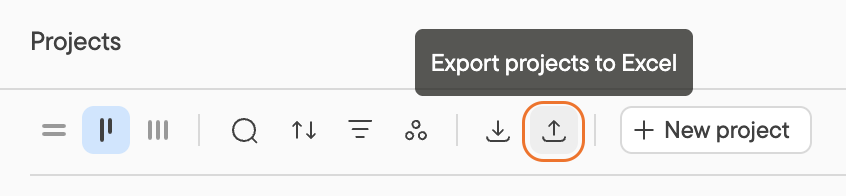
To export the Board view to Excel:
- Go to Projects
- The default is to show the projects in a vertical column via List. Click on Board.
- Click on Export Projects to Excel in the Board View.
Export shading scene to .PVC
Glint Solar lets you export shading scenes to PVsyst using .PVC files. This feature transfers module tables and their terrain-based positions directly from Glint Solar to PVsyst.
To use your project's shading scene in PVsyst:
- Click the Export Shading Scene (PVC) button in the top right of the analysis report in Glint
- Import the exported file to PVsyst: File → Import → Import 3D Scene

Exporting to PVSyst with a flat terrain
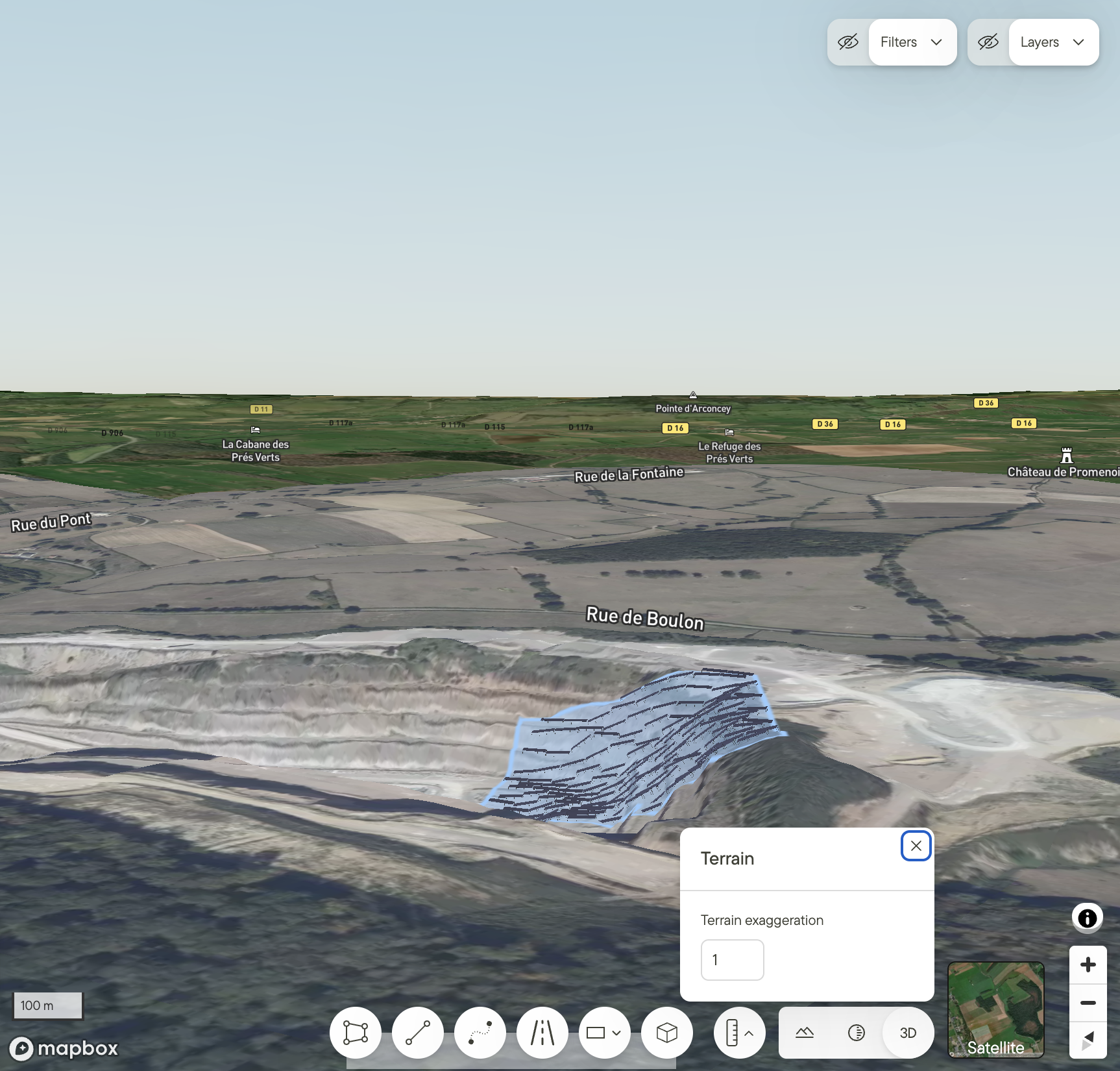
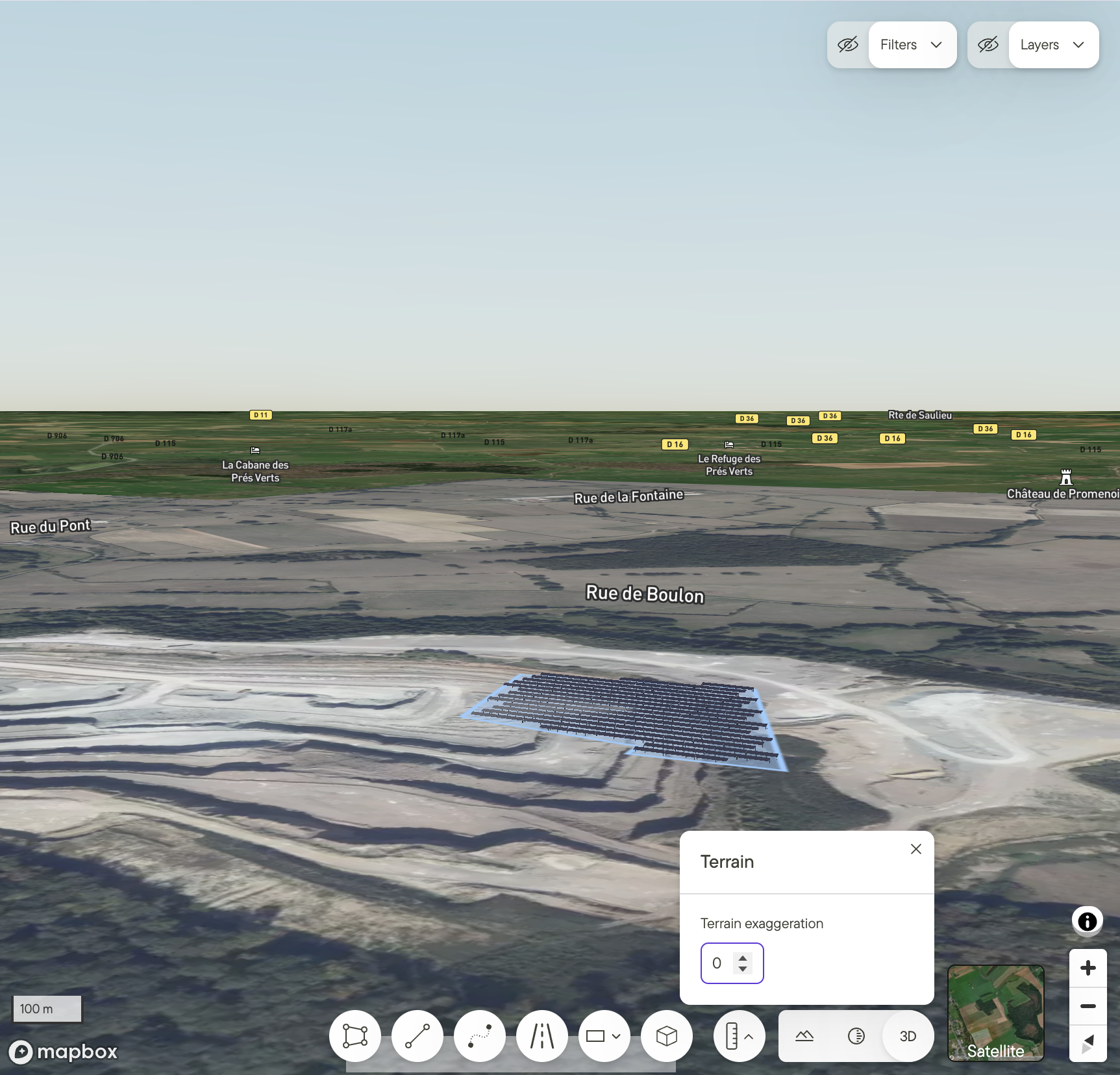
In some cases, you may know that the real-life topography of your site will be flat. By enabling Flatten Terrain, Glint will override terrain data and export as if the site were flat.
To get a sense of what this option does, set terrain exaggeration to 0 in the 3D view. The example below shows a site with steep slope. The first image shows what would be exported by default, the second shows what would be exported with a flattened terrain.
Export map view
Click here to read our guide on exporting the map view, which includes a helpful video and instructions for configuring your export.
Additional resources
Learn more about how you can collaborate with team members and externals.
Find a complete list of supported file formats for import.