
Importing data as a layer
Glint Solar lets you upload data as a layer that you can view on the map, use in combination with other layers and filters and edit. Imported layers are distinct from those maintained by Glint and are only visible to your organisation.
Importing a data layer to Glint Solar
How to import data as a layer
- Click on the Layers button in the top right of your screen.
- Click on the Import button.
- Drag and drop your chosen file or select it from your computer.
- The file will take a few moments to upload and then will be processed by Glint in a few minutes.
When the imported layer has finished processing it will be available to show on the map.
How to use the imported data layer
- Click on the eye icon next to the layer to toggle it on and off in the map.
- Click on the three dots to the left of the layer to open a menu:
- Click View as list to open the data from that layer in a table — click on a row in the table to open that location in the map.
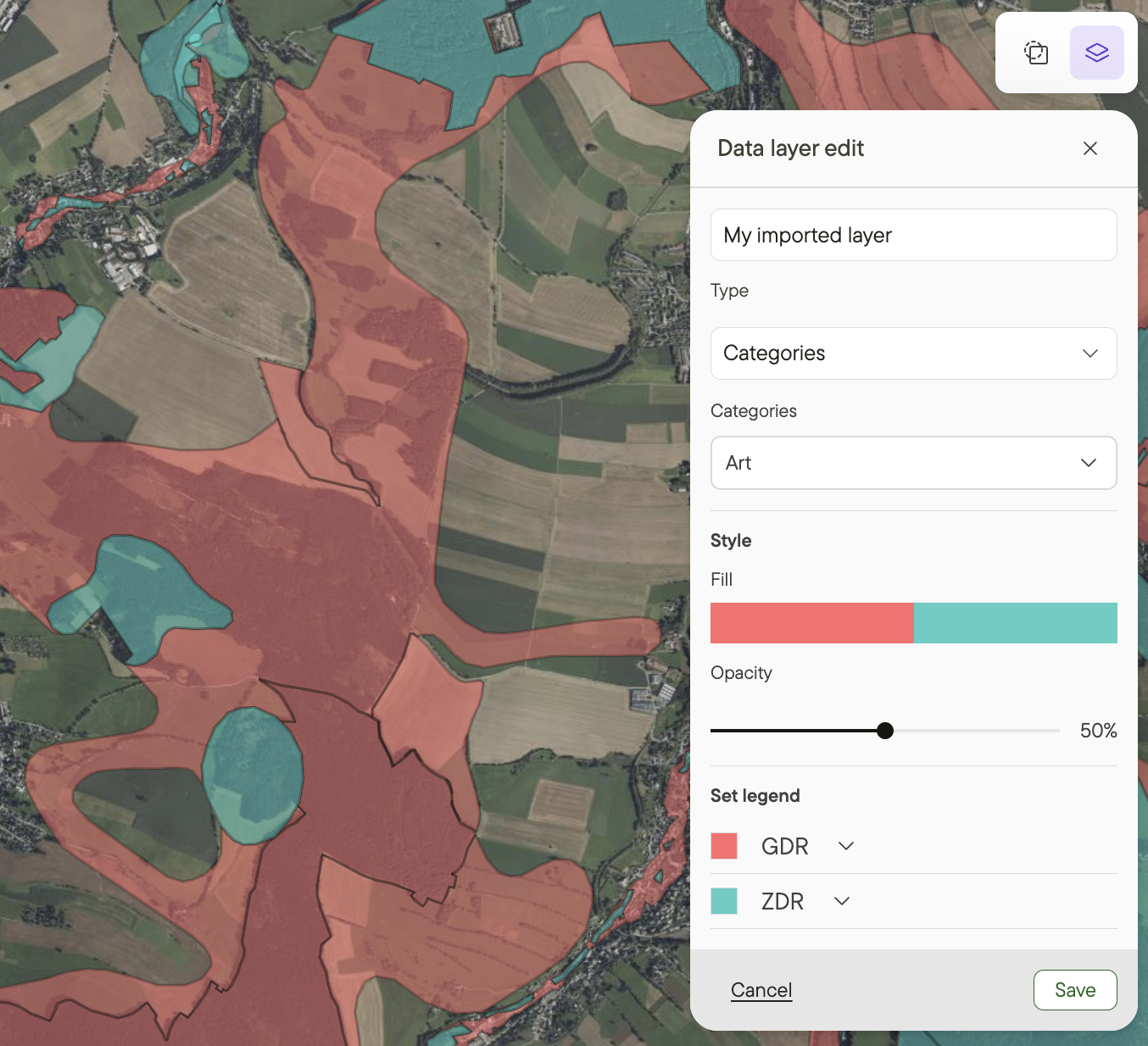
- Click Edit layer to adjust the colour and opacity of the objects in the layer.
Additional resources:
Learn more about using layers in Adding data from the layers library and using the in-map view.
Learn more about importing data to Glint Solar in Import projects and Importing data as a layer.
Learn more about data requests in Need more data?