
How to invite team members
How to invite team members to Glint Solar
Now that you've created a few projects, it's time to start collaborating with your team and get the most out of Glint Solar. This article will show you how to invite others and set your team up for success.
Why collaborate in Glint Solar?
Here are some key benefits you can share with your team:
- Glint Solar enables real-time collaboration, ensuring cross-functional teamwork and helping you create the most accurate solar layouts from the start.
- It helps teams manage their development portfolio and keep projects on track. Each project has a single owner, defined stage, and estimated capacity, making accountability clear.
- A map overview lets project owners spot nearby projects and gather local insights about potential risks from team members.
How to manage organization members to Glint Solar
Before inviting users, decide whether they need access to all organization portfolios or just specific ones. By default, new members get access to all portfolios. You can read more about access management in Glint Solar here.
Follow these steps to invite a user as an organization member:
- Click the Menu button and select Company settings.
- From here, go to People, Users and click Add user. Enter the email address and role, then click Send invite
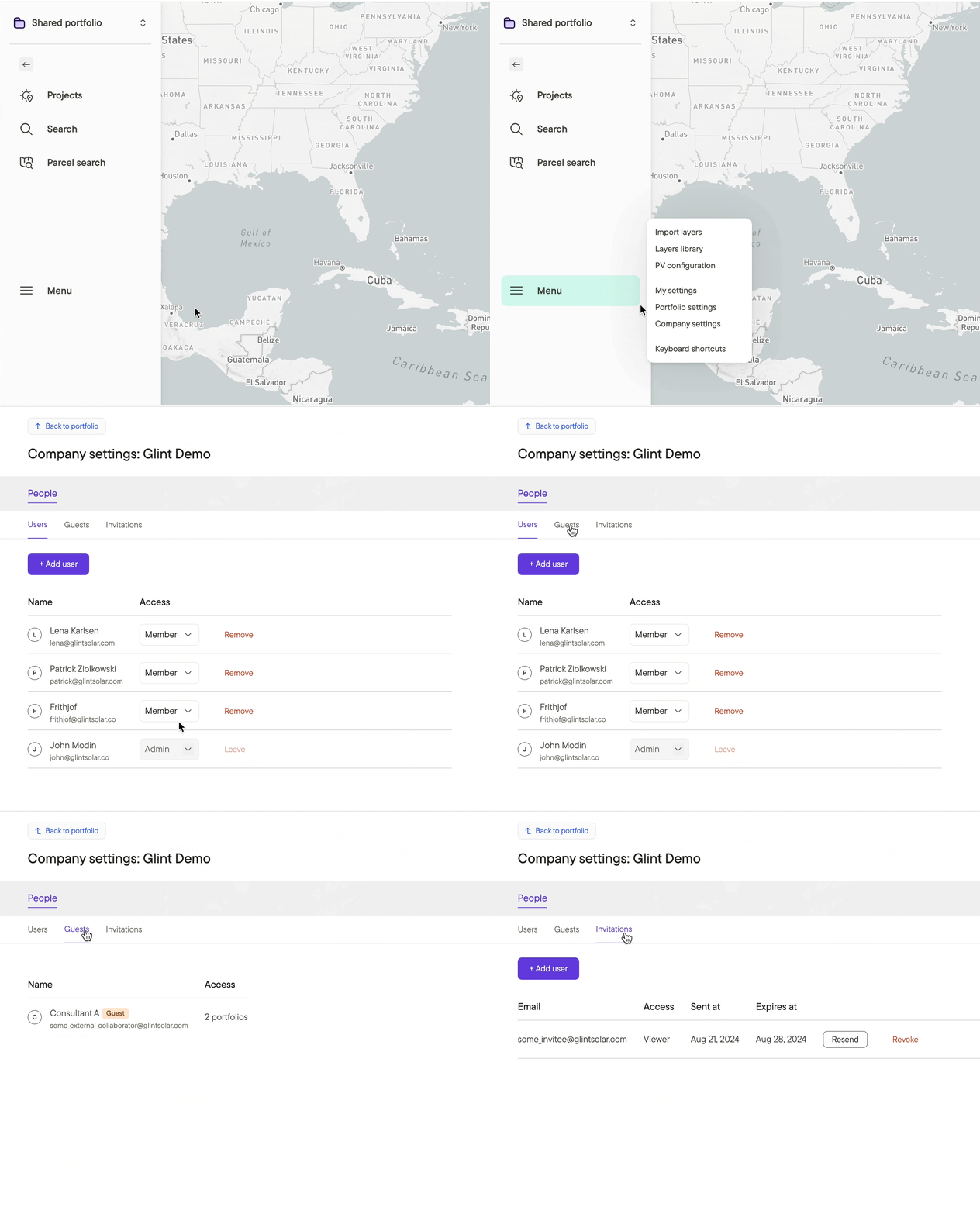
An automatic email will be sent to the invited person with a link to set up their username and password.
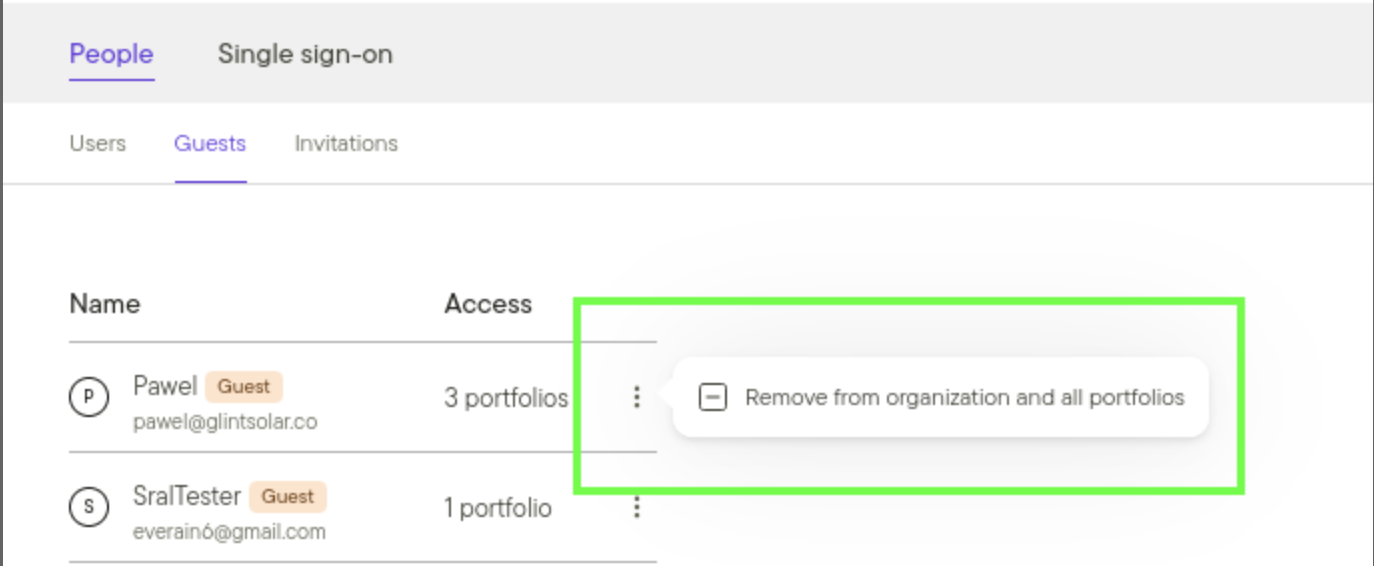
To remove a user from your organization or portfolio, click on the 3 dots and "Remove from organization and all portfolios"
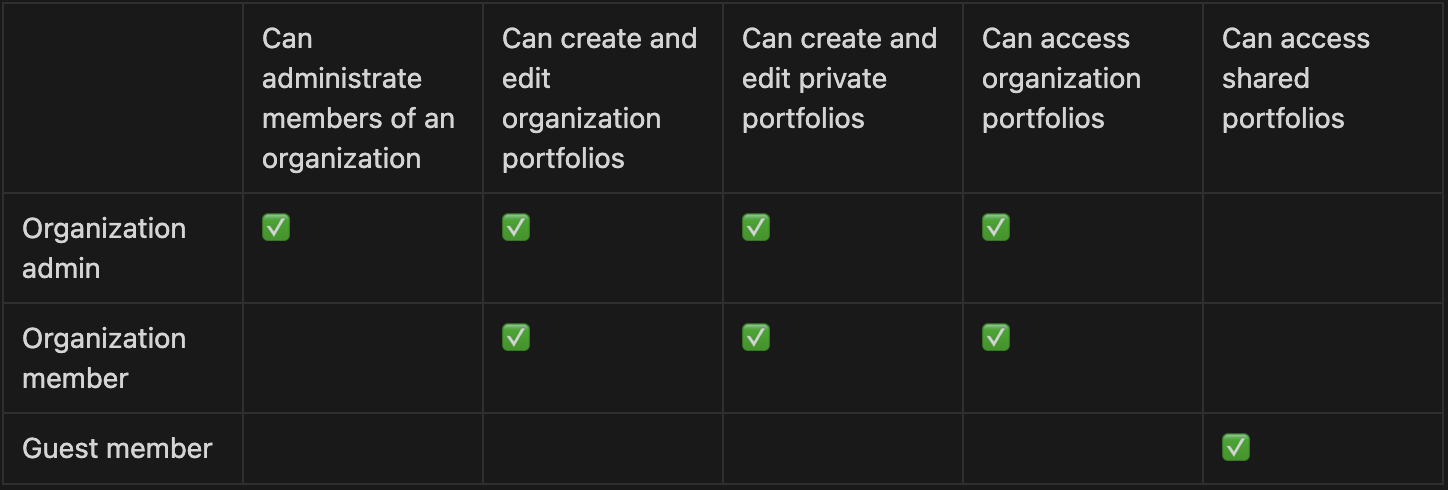
Organization members and admins
Organization members and admins can create, edit and share portfolios. Guest members of a portfolio cannot create or edit portfolios as shown in the table below:
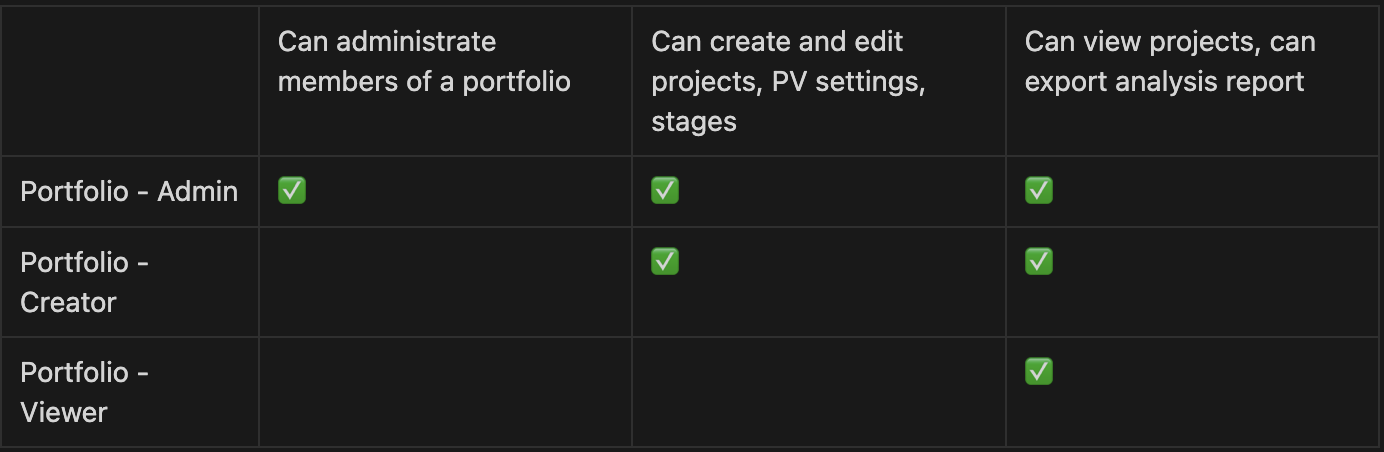
Portfolio admins, creators and viewers
Access can also be managed on a portfolio level. What you can do within a portfolio you have access to, depends on the type of portfolio access you have, no matter of you are an organization member or a guest member as shown below:
Setting your team up for success
Once your teammates join Glint Solar, you're ready to start working together. Here are some tips for a smooth start:
- The Getting started with Glint Solar section in the Help Center covers all the basics you need to know.
- The Help Center includes comprehensive onboarding videos in multiple languages that provide a full tutorial for new team members.
- Establish a few PV profiles with your team so you're all aligned.
Additional resources
Read more about how to collaborate in Glint Solar.
If you want to give access to a specific portfolio only, you can read more about how to share a portfolio with external collaborators.