Access management in Glint Solar
Access management is crucial for portfolio management. While some users need complete access for a full overview, others require limited access to specific portfolios. This flexibility in managing user access is essential.
In Glint Solar, user access is managed at two levels. Every user will have a specific role at both
- Organization level
- Portfolio level
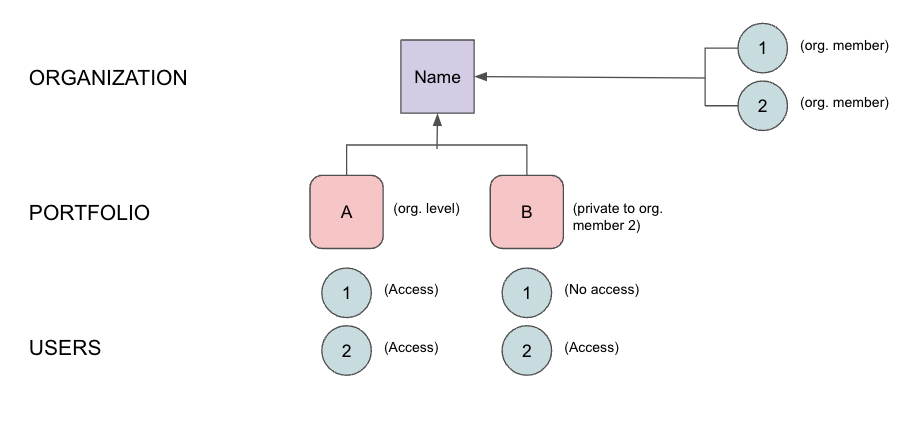
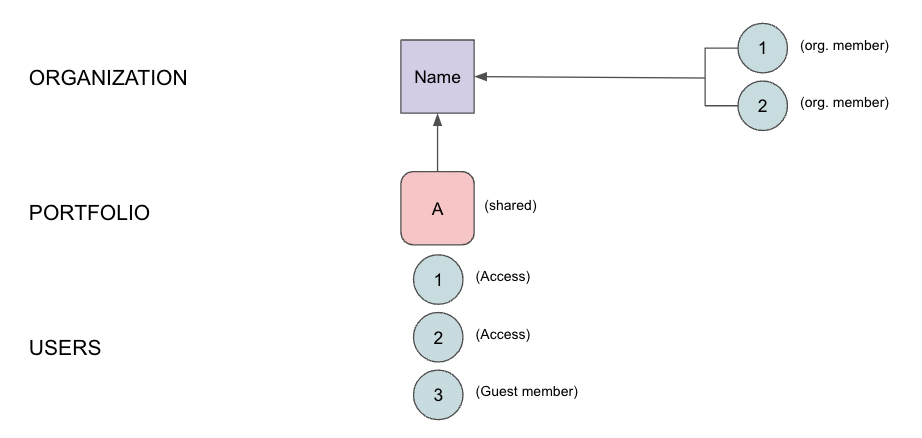
Organizations can have both admins, members, and guests, and can contain multiple portfolios. Each portfolio can have its own specific user access settings, as shown in the examples below.
Example 1) Organization member with one organization portfolio and one private portfolio
Example 2) Guest member with access to a shared portfolio
Organization members and admins
Organization members and admins can create, edit and share portfolios. Guest members of a portfolio cannot create or edit portfolios, as shown in the table below:
| Can administrate members of an organization | Can create and edit organization portfolios | Can create and edit private portfolios | Can access organization portfolios | Can access shared portfolios | |
| Organization admin | ✅ | ✅ | ✅ | ✅ | |
| Organization member | ✅ | ✅ | ✅ | ||
| Guest member | ✅ |
Portfolio admins, creators and viewers
Access can also be managed at the portfolio level. Your abilities within a portfolio depend on your access type, regardless of whether you're an organization member or guest member, as shown below:
| Can administrate members of a portfolio | Can create and edit projects, PV settings, stages | Can view projects, can export analysis report | |
| Portfolio - Admin | ✅ | ✅ | ✅ |
| Portfolio - Creator | ✅ | ✅ | |
| Portfolio - Viewer | ✅ |
Default access to organization portfolios
When you create an organization portfolio, all organization members automatically receive Creator access to that portfolio.
Portfolio admins can adjust the access level of portfolio members after the portfolio has been created.
How:
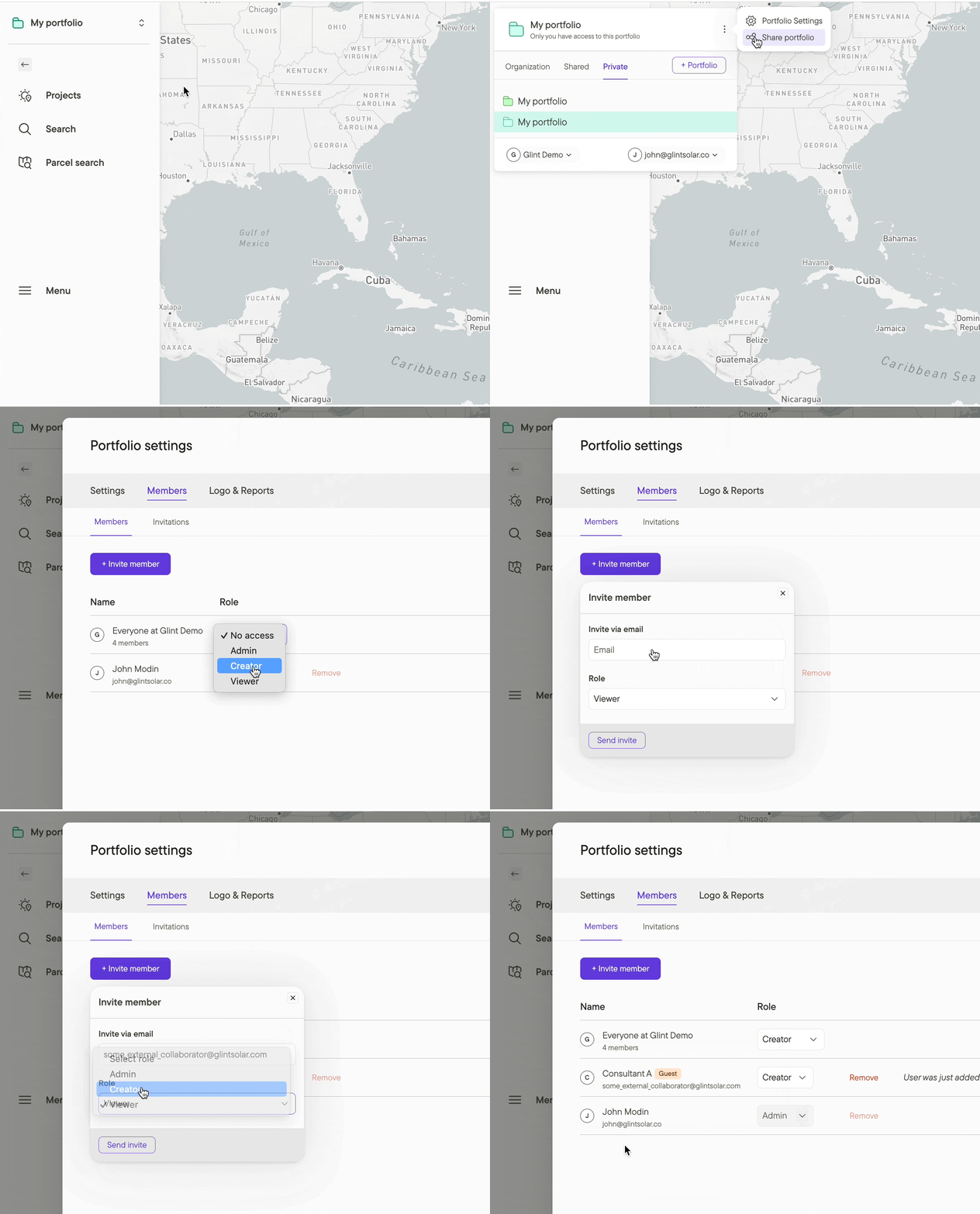
- From the Menu button on the left sidebar, choose Portfolio settings
- Select the Members tab to invite new users or adjust user access
Additional resources
Read more about how to invite users as organization members and portfolio members.
Detailed breakdown of the portfolio roles
Below is a complete breakdown of what the portfolio roles can do, feature by feature.
| What you can do as ... | Admin | Creator | Viewer | Notes |
|---|---|---|---|---|
| Company | ||||
| Dashboard and charts | ✅ | ✅ | ✅ | Charts spanning portfolios where the user only has access to some cannot be shown. Requires organization level role of Admin or Member. |
| Contacts | ✅ | ✅ | ✅ | Requires organization level role of Admin or Member. |
| Settings (profiles, colors, properties, integrations) | ✅ | (✅) | Members can see, but only admins can modify. | |
| Portfolio | ||||
| View the portfolio and its projects | ✅ | ✅ | ✅ | |
| Rename the portfolio, or change its region or color | ✅ | |||
| Delete the portfolio | ✅ | |||
| Manage who has access, and their role | ✅ | |||
| Upload a logo, adjust report and export settings | ✅ | |||
| Projects | ||||
| Create, rename, move, or delete a project | ✅ | ✅ | ||
| Edit project details | ✅ | ✅ | ||
| Export project data (drawings, files, reports) | ✅ | ✅ | ✅ | |
| Design & Analysis | ||||
| Draw or edit objects on the map (layouts, shapes, routes etc) | ✅ | ✅ | ||
| Run a buildable-area or area-insight report | ✅ | ✅ | ||
| Rename or delete an area-insight report others made | ✅ | ✅ | ||
| Create, rename, delete, or enhance an analysis | ✅ | ✅ | ||
| View and export an analysis report | ✅ | ✅ | ✅ | |
| Create and download a map export | ✅ | ✅ | ||
| Equipment configuration | ||||
| Create or edit PV/BESS profiles, panels, inverters, transformers | ✅ | ✅ | ||
| Publish a configuration for the whole company to use | See note | Requires being an organization admin in addition to having a portfolio role. | ||
| Use a configuration published by the company | ✅ | ✅ | ||
| Layers & imports | ||||
| View and favorite available layers | ✅ | ✅ | ✅ | |
| Import a layer or file | ✅ | ✅ | ||
| Rename, remove, or organize imported layers into collections | ✅ | ✅ | ||
| Parcels & land | ||||
| Add or remove parcels from a project | ✅ | ✅ | ||
| Edit parcel details | ✅ | ✅ | ||
| Comment on a parcel | ✅ | ✅ | ✅ | |
| Export parcels to a spreadsheet | ✅ | ✅ | ✅ | |
| Add a custom field to parcels | See note | Organization Admin only, from Company Settings — see organization table above. | ||
| Contacts | ||||
| Create, edit, delete, or link a contact | ✅ | ✅ | ||
| Comments, files & reviews | ||||
| Comment on the map and attach files | ✅ | ✅ | ✅ | Open to everyone, including Guests. |
| Edit or delete a comment | ✅ | ✅ | ✅ | You can edit or delete your own comments. Admins can also manage comments left by others. |
| Upload a file or design review to a project | ✅ | ✅ | ||
| Delete an uploaded file or review | ✅ | ✅ | ||
| Glint AI | ||||
| Use the Glint AI assistant | ✅ | ✅ | Where enabled for your organization. | |