
BESS Design: Manual Design Mode
By default, Glint arranges the sets in a BESS polygon for you, using the set definition and distances from your BESS profile. With manual layout, you arrange them yourself: move, rotate, add or delete sets, batteries and MV stations.
When to use manual design mode
Stay in automatic layout as long as you can. It is the fastest way to a layout, it re-arranges itself when you change the profile, the polygon or the target power, and every set keeps the distances your profile prescribes. It is the right choice for a first quick assessment, for large sites, and for any site whose shape is not too complex.
Switch to manual layout for the last adjustments, the ones a rule can't make:
- an awkward plot: rotate one set into a corner, or move one to clear a road or a drainage line
- one set that differs: an extra battery where there is room, or the MV station turned towards the road
- an engineer's drawing to reproduce
How to use manual design mode
Switch to manual layout
- Start a new analysis and select the BESS polygon.
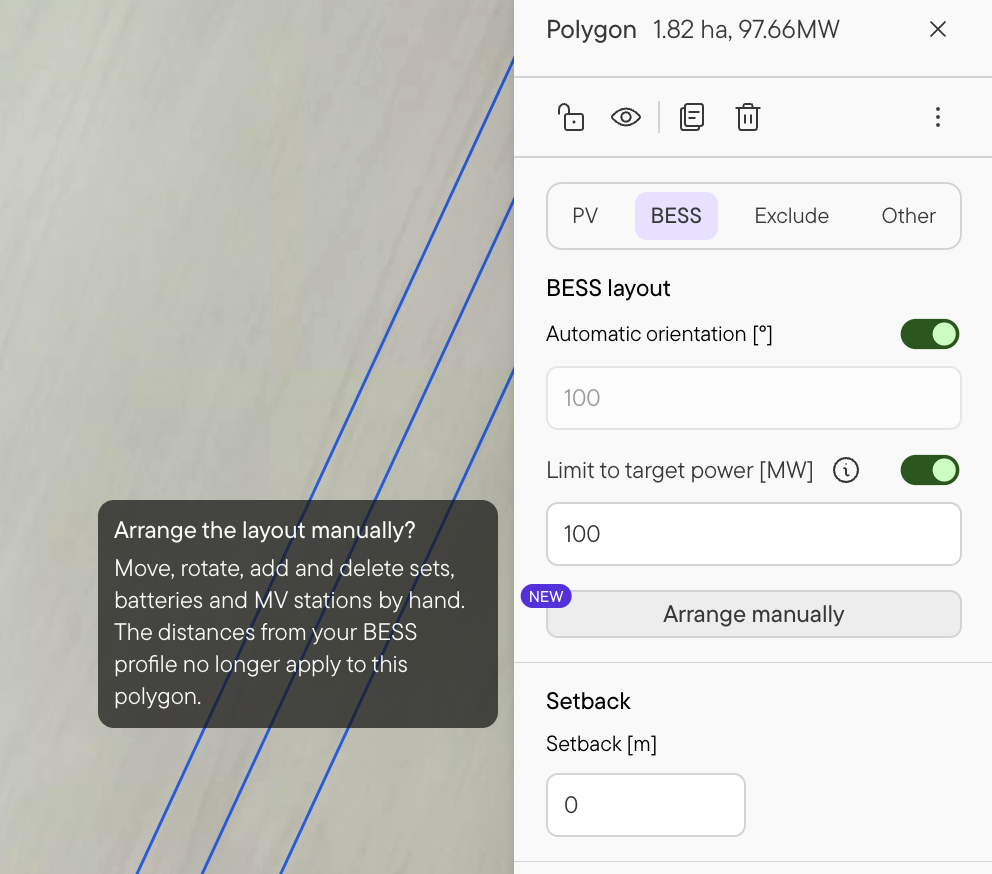
- In BESS layout, click Arrange manually.
- The sets stay where Glint placed them. The Manual layout toolbar appears above the drawing tools.
Arrange sets
- Select a set with one click. Press Esc or click elsewhere to deselect.
- Move it by dragging. Close to its original position the set snaps to the profile's spacing; further away it moves freely. A set can't leave the polygon.
- Rotate it with the handle above the selection. Near the layout's angle, or a quarter turn from it, the rotation snaps.
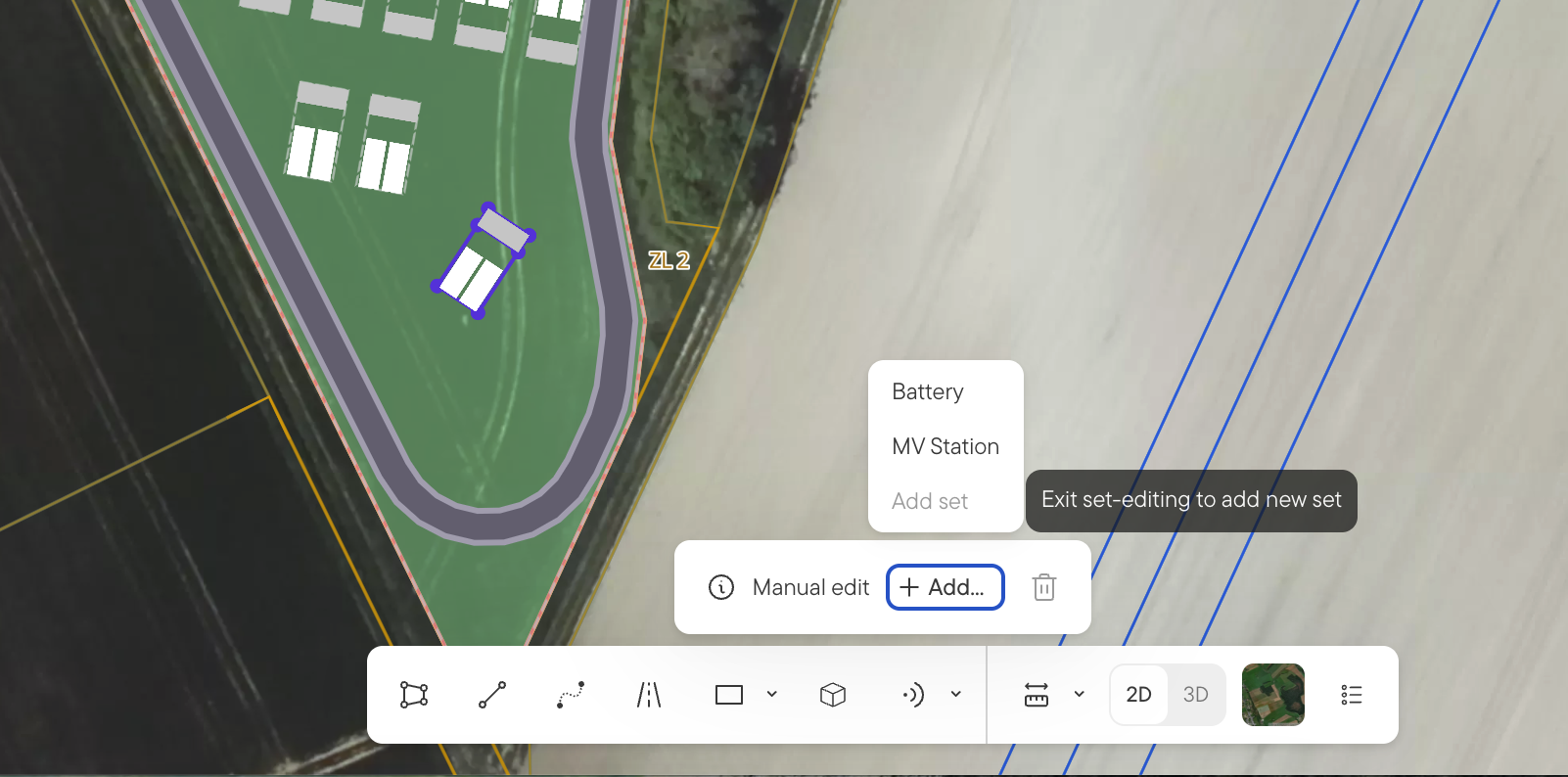
- Add a set with Add > Set (no set selected), then click where it should go. The new set is built from your profile.
- Copy and paste a selected set with Ctrl+C and Ctrl+V (Cmd on Mac). The copy lands on top of the original; drag it into place.
- Delete a selected set with the Delete key or the trash icon in the toolbar.
Edit batteries and MV stations
- Select the set, then click a battery or MV station inside it.
- Drag it to move it, or use the handle to rotate it. Inside a set nothing snaps; the only limit is the polygon.
- Add > Battery or Add > MV station adds one to the selected set; click to place it. Ctrl+C and Ctrl+V copies the selected one.
- The Delete key or the trash icon removes it. A set always keeps at least one battery and one MV station
Revert to automatic layout
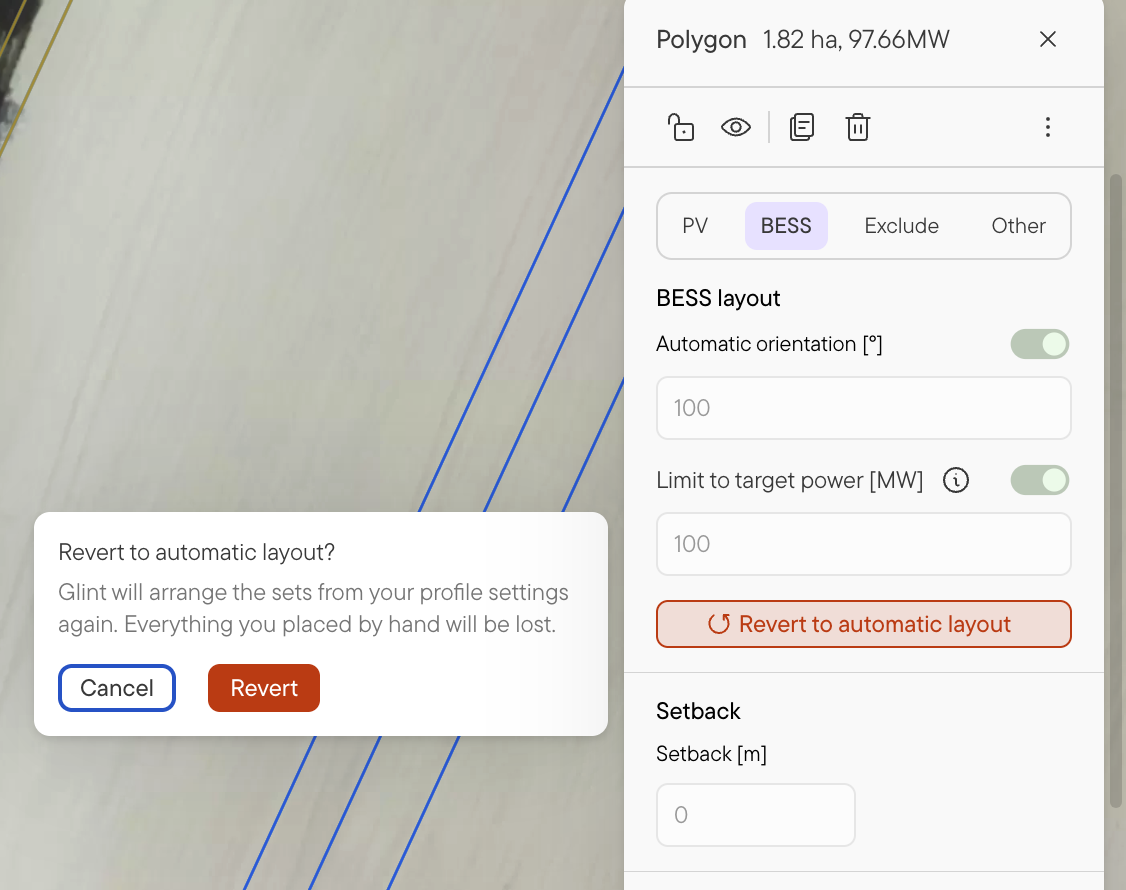
Click Revert to automatic layout in the BESS layout section and confirm. Glint arranges the sets from your profile again. Everything you placed by hand is removed, and there is no undo.
FAQ
Are my profile distances still enforced? No. In a manual layout, the distances are yours to keep. The starting point of a manual layout, however, does respect the distances defined in your profile. Once you start moving containers, you are responsible for making sure security distances are respected.
Why are Automatic orientation and Limit to target power greyed out? They are only available in Automatic mode, when the software lays out the BESS containers for you. Revert that polygon to change them.
Why can't I open Equipment or Set and layout definition in New analysis? Those settings describe the sets Glint builds for you. While any BESS polygon in the project has a manual layout, they are unavailable. Revert that polygon to change them.
Does the analysis use what I placed? Yes, exactly as placed. The manual layout is saved with the polygon and is still there when you reopen the project.
I edited sets in an earlier version of Glint. Where are my edits? Polygons with the old set overrides open in manual layout automatically, with your edits kept.
Can I still edit the polygon? Not while its layout is manual. Revert, reshape, then arrange manually again.
What about exclusion zones? Exclusion zones are used by Glint in automatic PV and BESS layouting. A manual layout is designed by the user, and doesn't avoid them automatically.